Appearance
Connecting Bitbucket to dx0
Connect your Bitbucket Cloud account, choose the repositories that matter, and ask dx0 plain-language questions about how they work. You get answers grounded in the source code, commit history and pull requests.
Use this when you need to understand a codebase that sits next to your Salesforce org: a middleware service, a customer-facing app, an SFDX project, or configuration for another system. You don't need to clone it or read it yourself.
How it works
There are three steps:
- Connect a Bitbucket account. This gives dx0 access to the repositories that account can see.
- Choose specific repositories. Out of everything the account can reach, you pick the repositories your team cares about and tell dx0 what each one is.
- Ask questions. Choose a repository in Quick Chat and start a conversation.
Only workspace admins can connect Bitbucket and add repositories. Once a repository is connected, every member of the workspace can ask questions about it.
Before you start
- Use the right Bitbucket account. Bitbucket has no per-repository picker, so dx0 can reach every repository the authorizing account can see, in every Bitbucket workspace it belongs to. To limit that reach, connect a dedicated account that only belongs to the workspaces you want dx0 to see.
- The connection belongs to a person. If that person removes dx0's access in Bitbucket, or leaves the company and their account is deactivated, the connection stops working and someone needs to reconnect.
- Bitbucket Cloud only. Bitbucket Data Center and Bitbucket Server aren't supported.
Step 1: Connect your Bitbucket account
- In dx0, go to Settings → Bitbucket.
- Click Connect Bitbucket. Bitbucket opens in a new tab.
- Sign in if you need to, review the permissions, and click Grant access.
- Go back to the dx0 tab. The connection appears with a connected status.
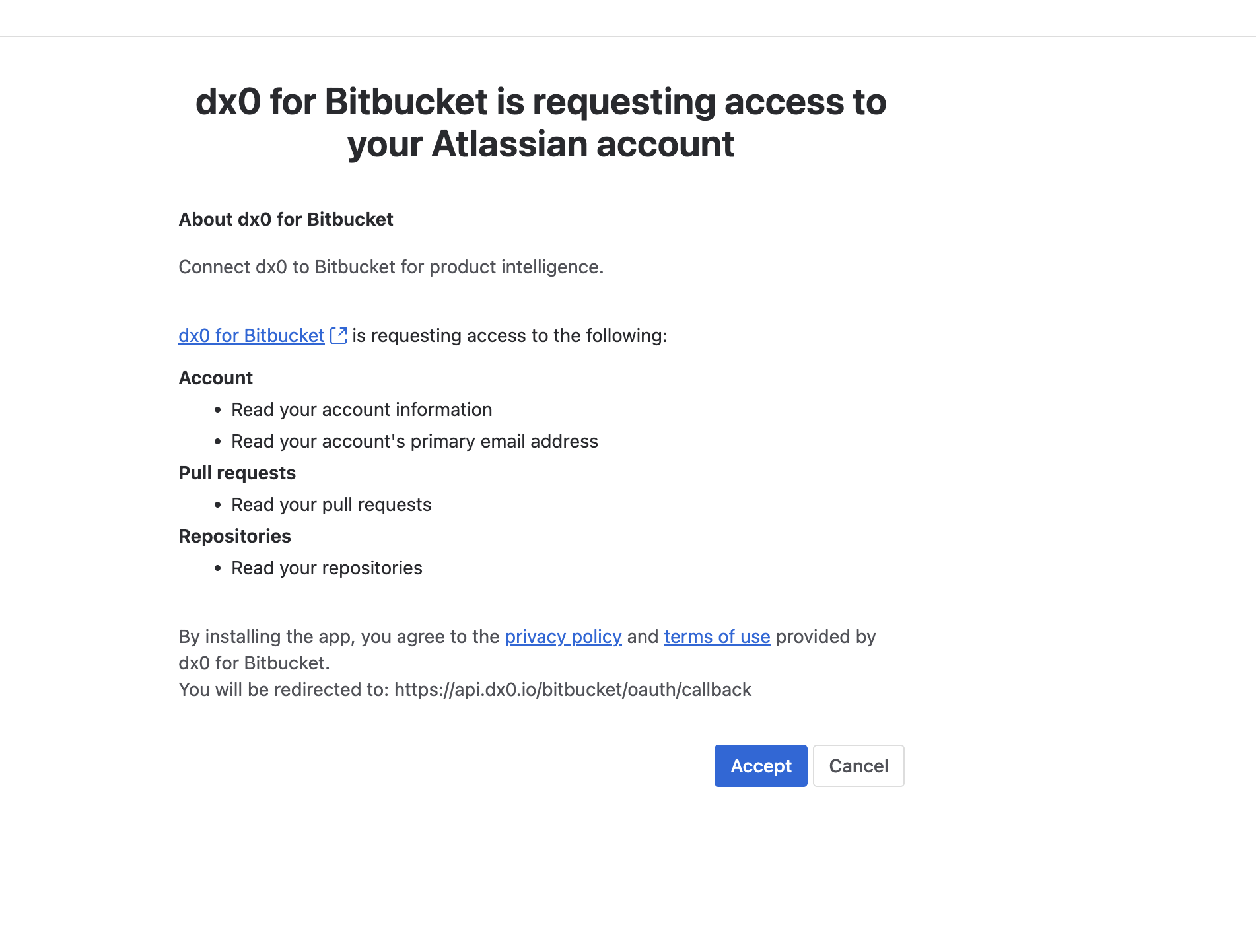
dx0 only reads from your repositories. It never pushes code, comments on pull requests or changes settings. The exact permissions granted are listed on the connection card after you connect.
To confirm access, click Load repositories, choose a repository, and click Check Connection.
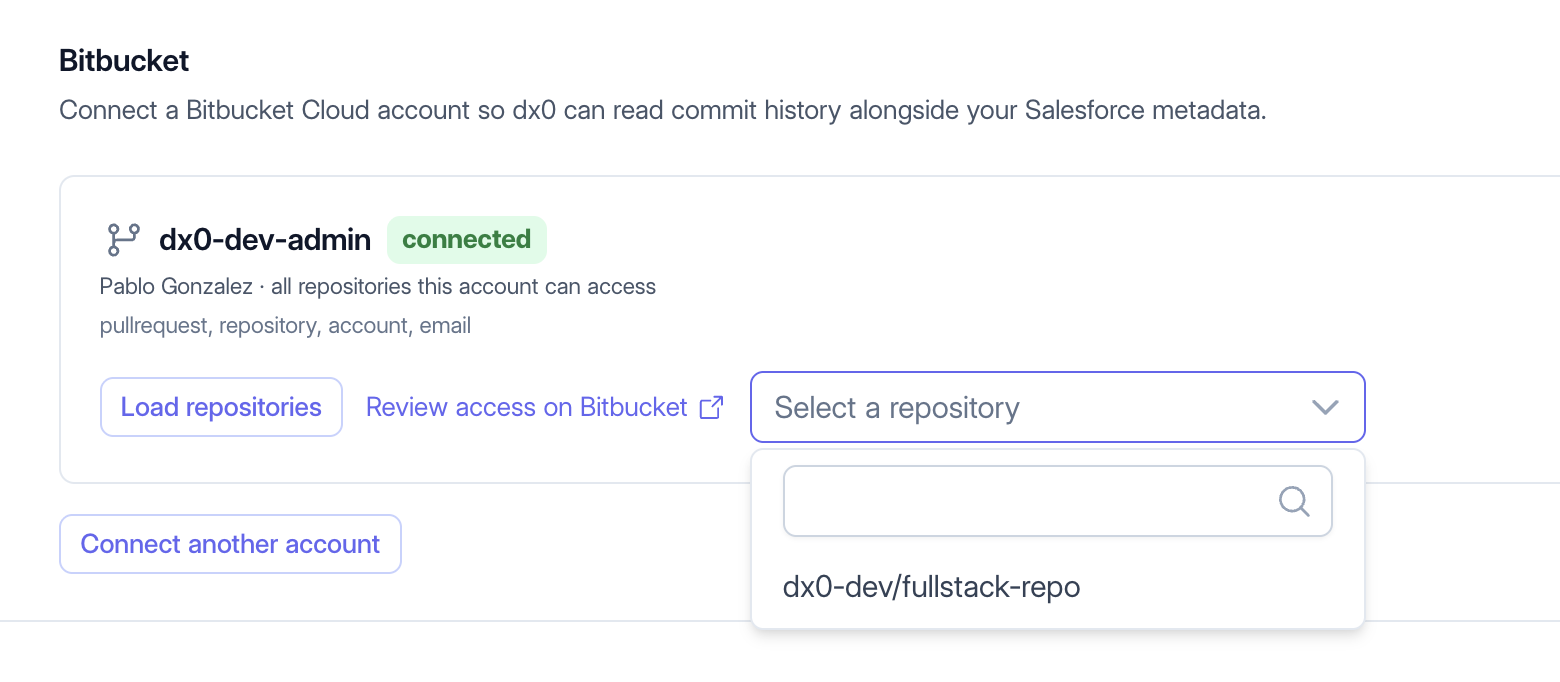
You can connect more than one Bitbucket account per workspace. Use Connect another account if different Bitbucket workspaces sit under different users.
Step 2: Choose which repositories to connect
- Go to Connections → Git Repositories.
- Click Add repository.
- Under Connection, choose your Bitbucket account (shown as
Bitbucket · <account>). - Under Repository, search for and choose the repository. Repositories that are already connected are greyed out.
- Fill in the repository details (see below) and click Connect.
Before saving, dx0 checks that it can actually read the repository. If it can't, you see the reason and the dialog stays open.
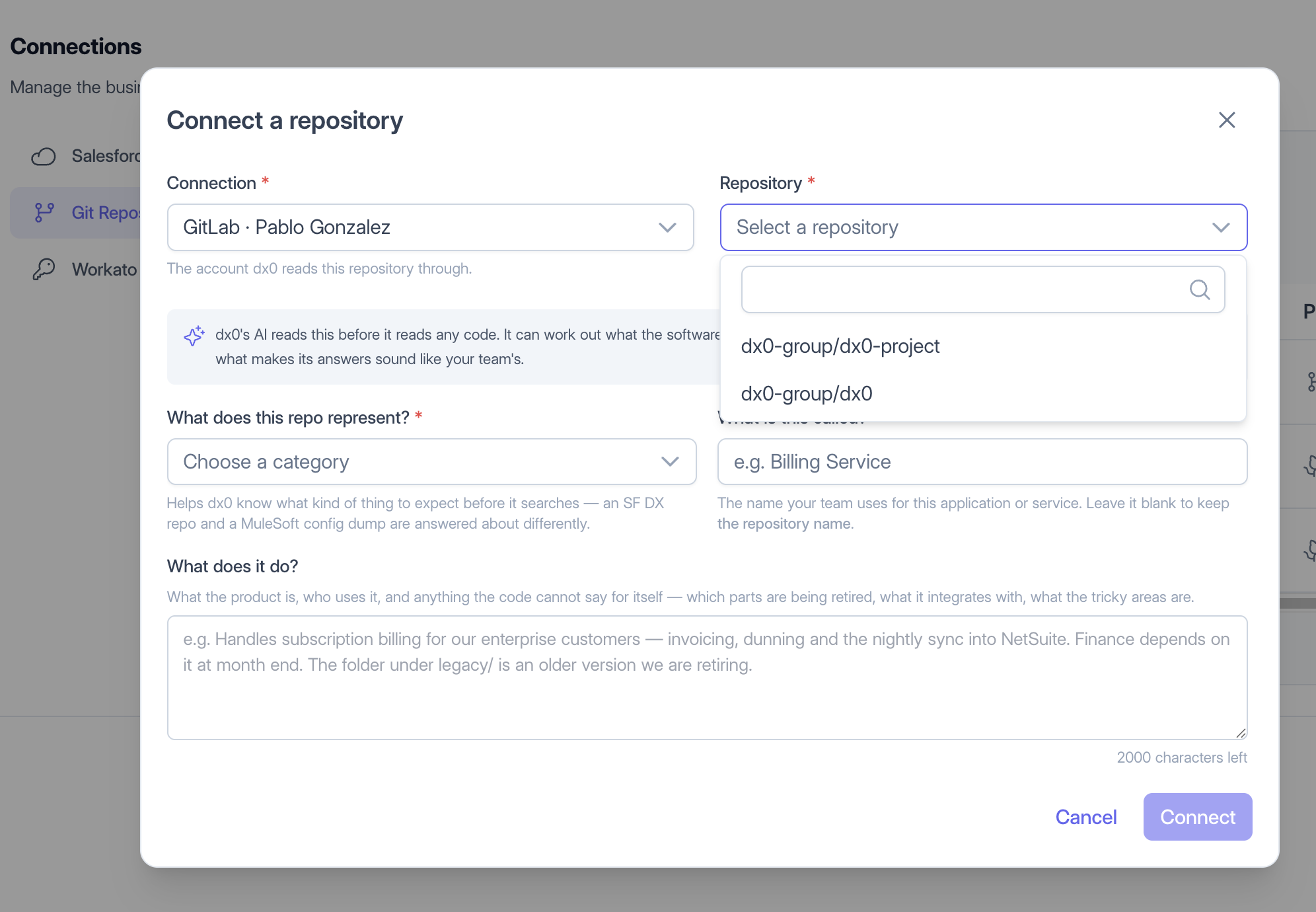
The repository details matter
dx0 reads these details before it reads any code. Take a minute to fill them in properly. They change how good the answers are.
- What does this repo represent? (required): a Salesforce DX repository, a customer-facing product, an internal service or application, or configuration for another application. dx0 approaches each one differently.
- What is this called? The name your team uses, such as "Billing Service" rather than
acme/svc-bl-2. dx0 uses this name in its answers. - What does it do? A short paragraph covering who uses it, what it integrates with, which parts are legacy or being retired, and where the tricky areas are. This is the context the code can't give on its own.
You can edit the details later on the repository's page.
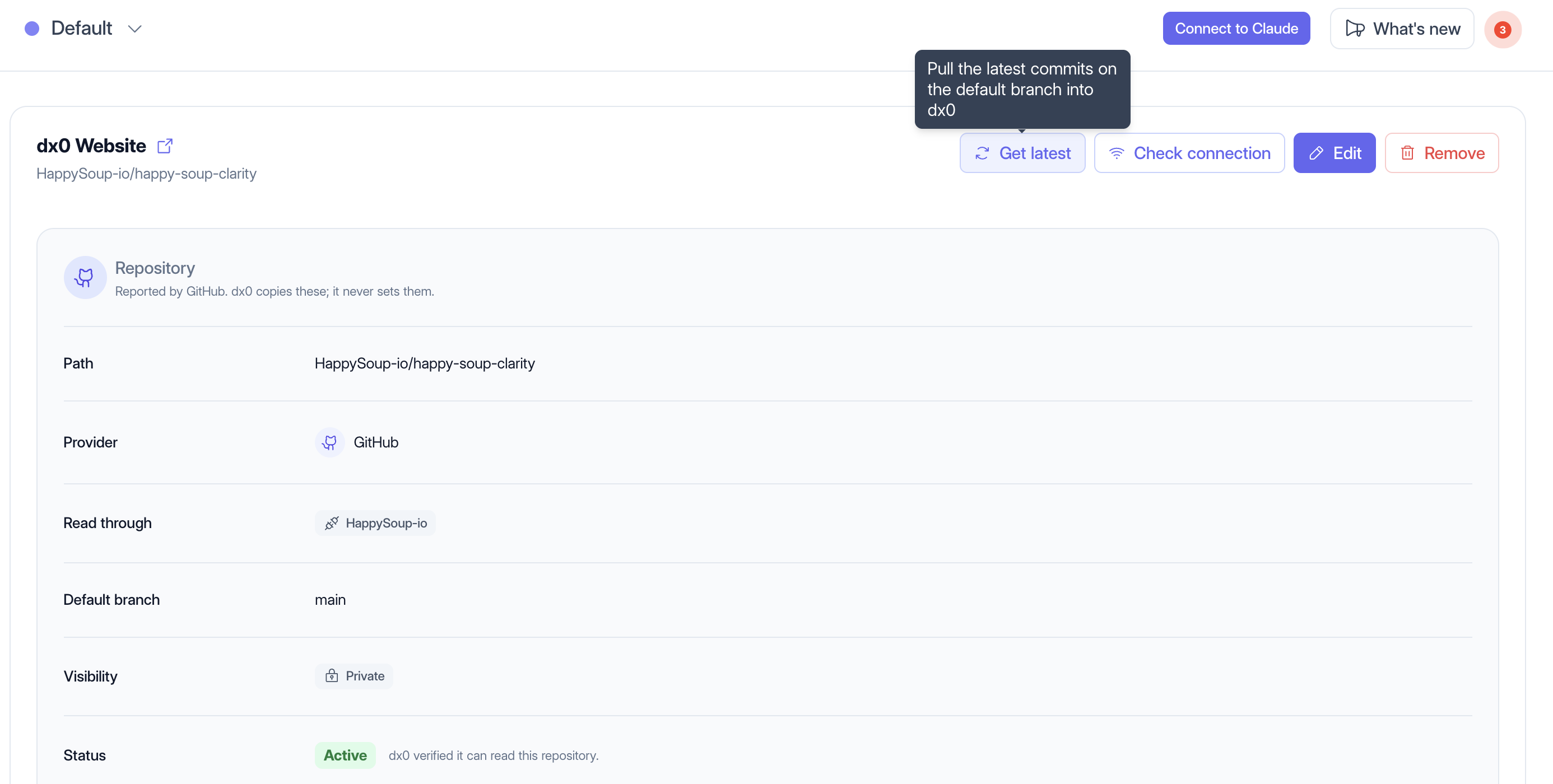
Managing a connected repository
Click a repository in the list to open its page. From there you can:
- Get latest: pull the newest commits on the default branch into dx0 right away. dx0 also refreshes on its own every few hours.
- Check connection: confirm that dx0 can still read the repository.
- Edit: update the name, type and description.
- Remove: disconnect the repository from dx0. Nothing changes on Bitbucket.
Step 3: Ask questions in Quick Chat
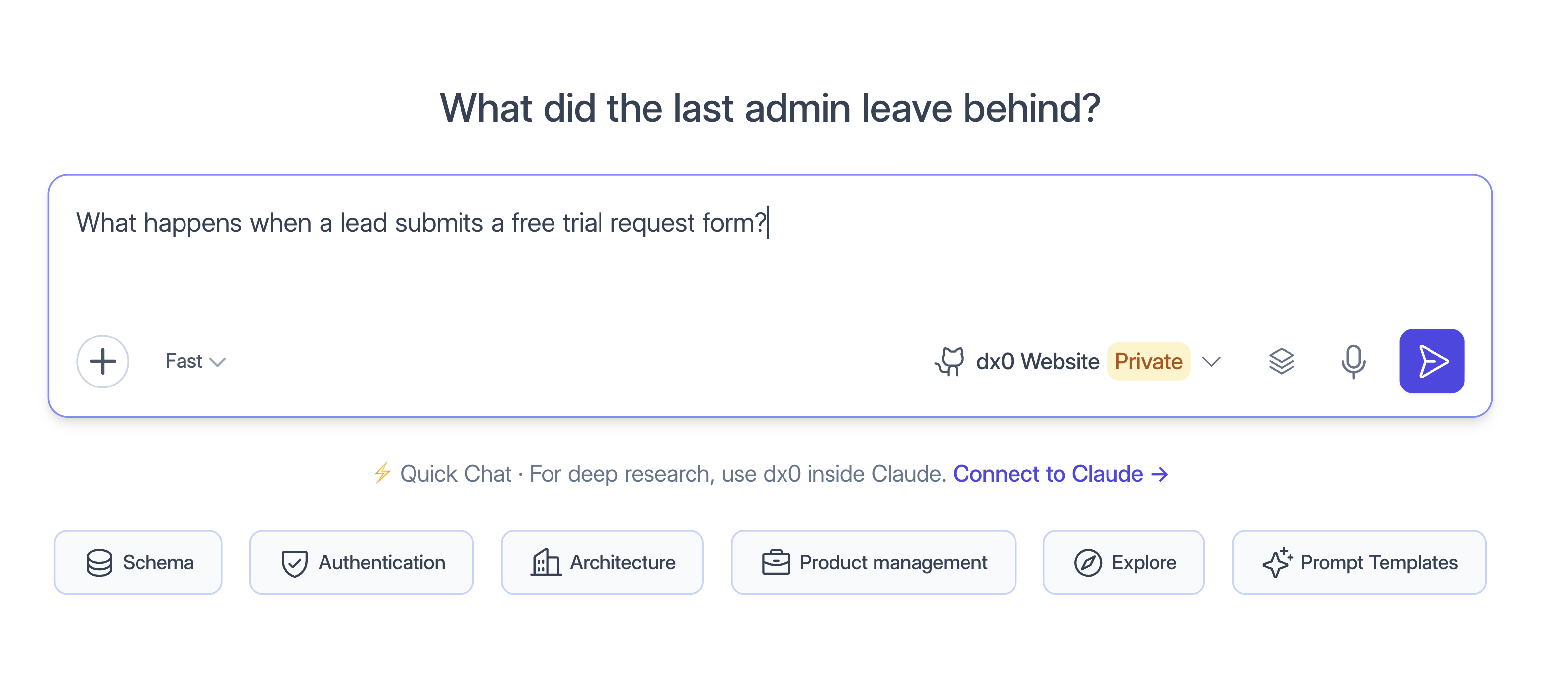
- Open Quick Chat from the sidebar.
- In the connection picker, choose your repository under Repositories.
- Type a question, or start from one of the prompt templates under the composer.
What dx0 can and can't see
- It can see the source code on the repository's default branch, the commit history and recent pull requests.
- It can't see other branches, Bitbucket Pipelines, runtime logs, repository variables, or other repositories. One conversation covers one repository.
- Freshness: the copy dx0 reads refreshes every few hours. Click Get latest if you need something that was merged a few minutes ago.
Troubleshooting
A repository you expect is missing from the list. Check that the connected account is a member of the Bitbucket workspace that owns the repository and can see the repository itself. For accounts with a very large number of repositories, the list may be incomplete. Connecting a more narrowly scoped account helps.
The connection shows "Needs attention" or a warning. The Bitbucket authorization is no longer valid. Usually it was removed on Bitbucket, the user's account was deactivated, or it went unused for a long time. Disconnect the account and connect it again.
A repository shows as Orphaned. dx0 lost access, usually because the Bitbucket account was disconnected. Reconnect Bitbucket in Settings, then click Check connection on the repository. Your repository details are kept.
Quick Chat says to set the repository type. Open the repository from Connections → Git Repositories, click Edit, and choose what it represents.
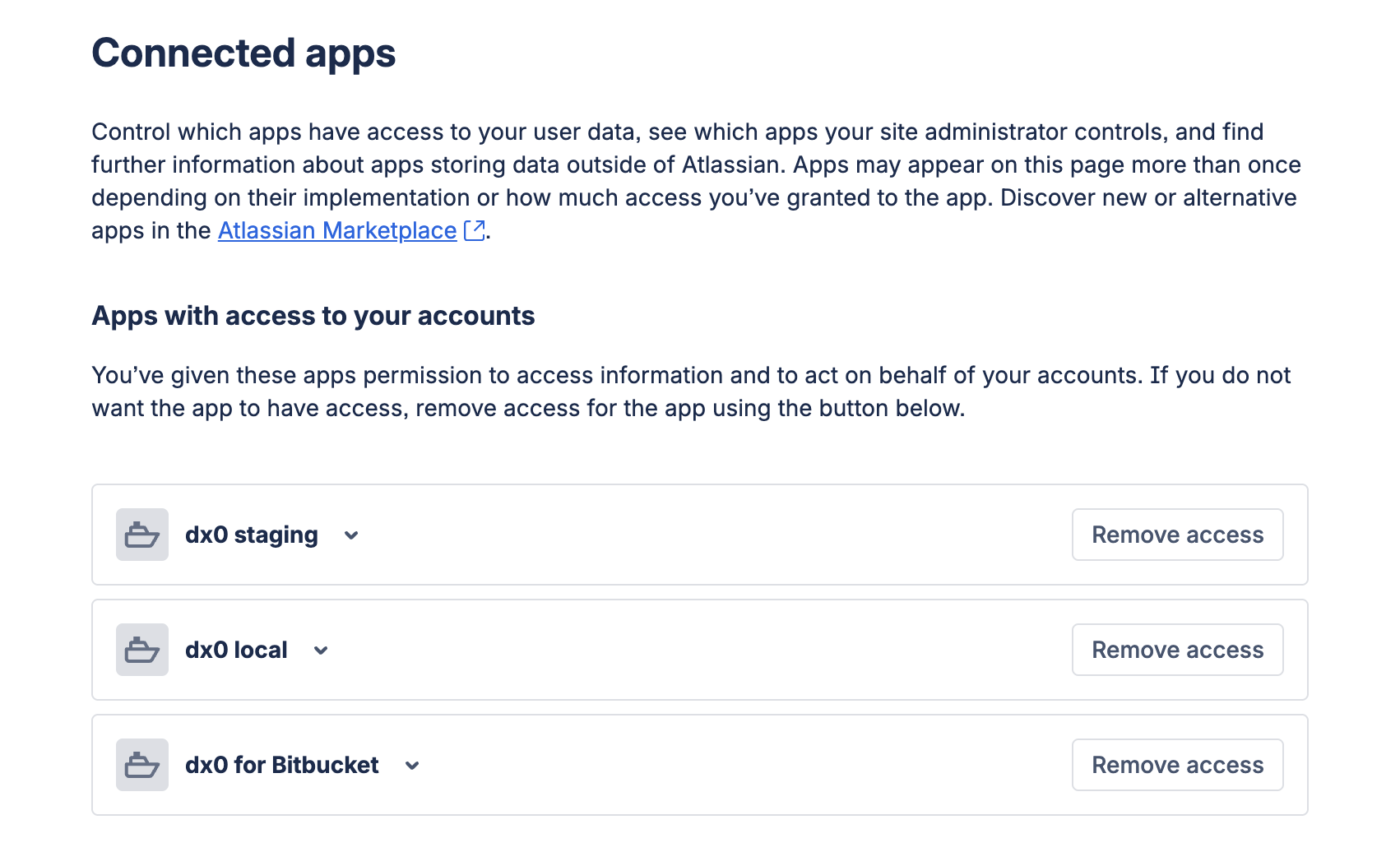
Disconnecting Bitbucket. On Settings → Bitbucket, use the trash icon on the account. dx0 deletes its stored tokens and loses access immediately. Bitbucket doesn't let apps revoke their own authorization, though, so dx0 still appears in the user's Bitbucket account until they remove it. Use Review access on Bitbucket on the connection card to go straight there. Repositories that used that account are marked Orphaned rather than deleted.