

Appearance
Connecting GitHub to dx0
Install the dx0 GitHub App on your organization, choose the repositories that matter, and ask dx0 plain-language questions about how they work. You get answers grounded in the source code, commit history and pull requests.
Use this when you need to understand a codebase that sits next to your Salesforce org: a middleware service, a customer-facing app, an SFDX project, or configuration for another system. You don't need to clone it or read it yourself.
How it works
There are three steps:
- Install the dx0 GitHub App. You choose which repositories in your GitHub organization or account dx0 can read.
- Choose specific repositories. Out of the repositories you shared, you pick the ones your team cares about and tell dx0 what each one is.
- Ask questions. Choose a repository in Quick Chat and start a conversation.
Only workspace admins can connect GitHub and add repositories. Once a repository is connected, every member of the workspace can ask questions about it.
Before you start
- You control the scope. GitHub lets you share all repositories or only selected ones. Choose Only select repositories and share just what dx0 needs. You can add more later.
- The connection belongs to the organization, not a person. dx0 connects as a GitHub App installed on the organization, so it keeps working when the person who installed it changes roles or leaves.
- You may need an organization owner. Only owners can install apps on a GitHub organization. If you aren't one, GitHub sends them an approval request instead.
- GitHub.com only. GitHub Enterprise Server isn't supported yet.
Step 1: Install the dx0 GitHub App
- In dx0, go to Settings → GitHub.
- Click Connect GitHub. GitHub opens in a new tab.
- Choose the organization or personal account to install dx0 on.
- Choose All repositories or Only select repositories, pick the repositories, and click Install.
- You're sent back to dx0. The organization appears with a connected status.
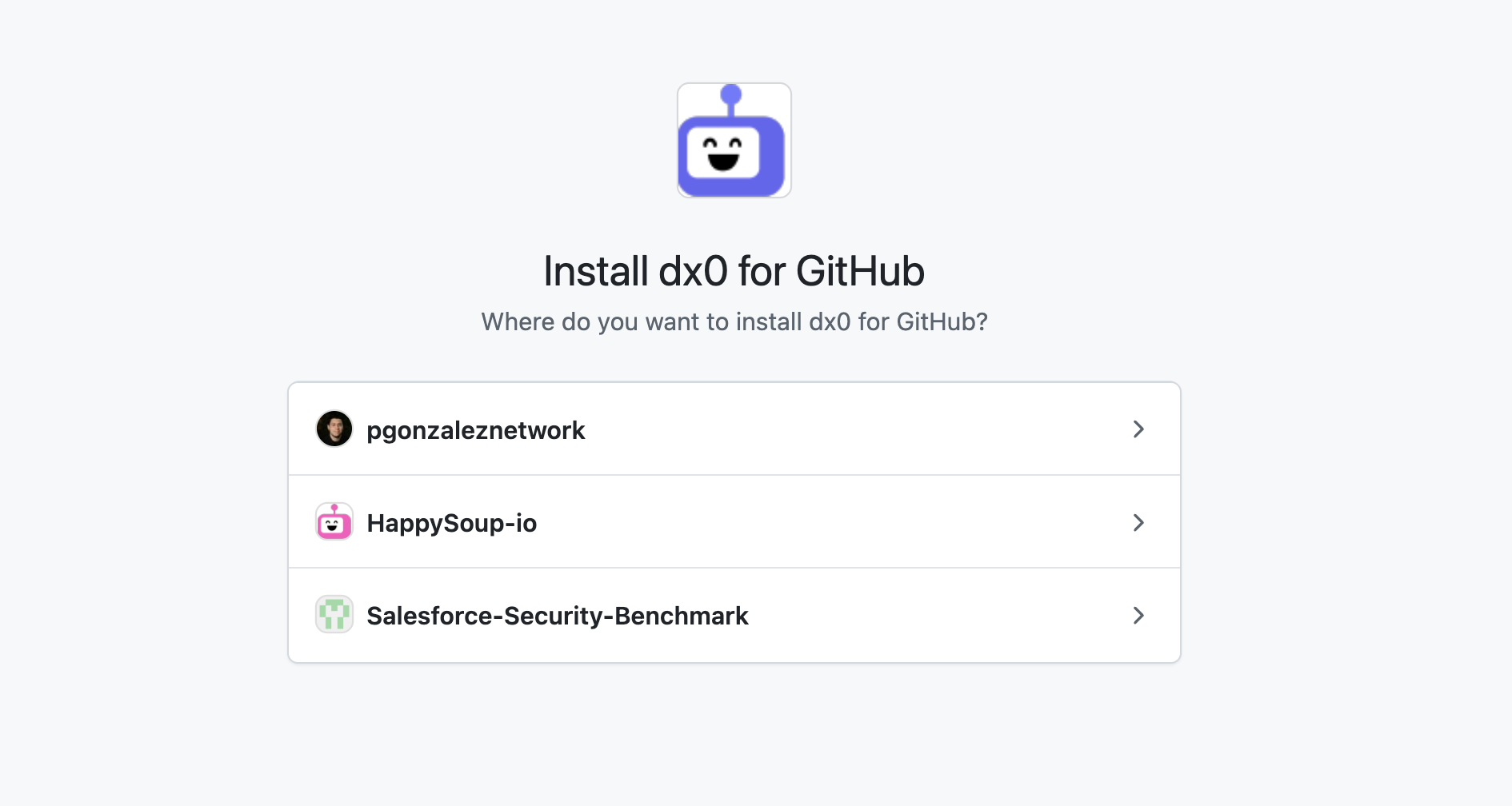
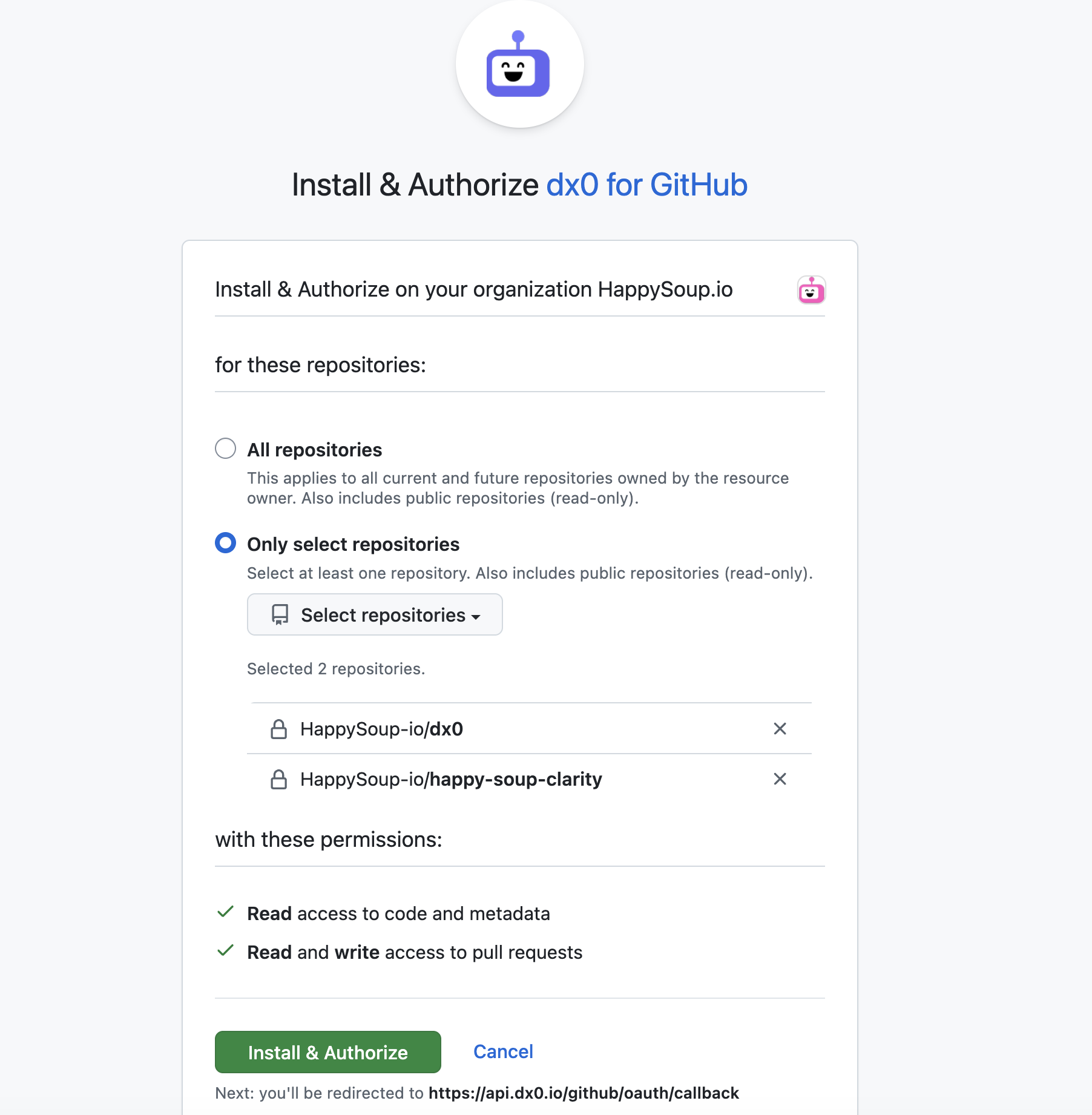
dx0 can read your code but never change it. The permissions granted are listed on the connection card. dx0 also requests access to pull requests and issues, for upcoming features such as pull request comments.
To confirm access, click Load repositories, choose a repository, and click Check Connection.
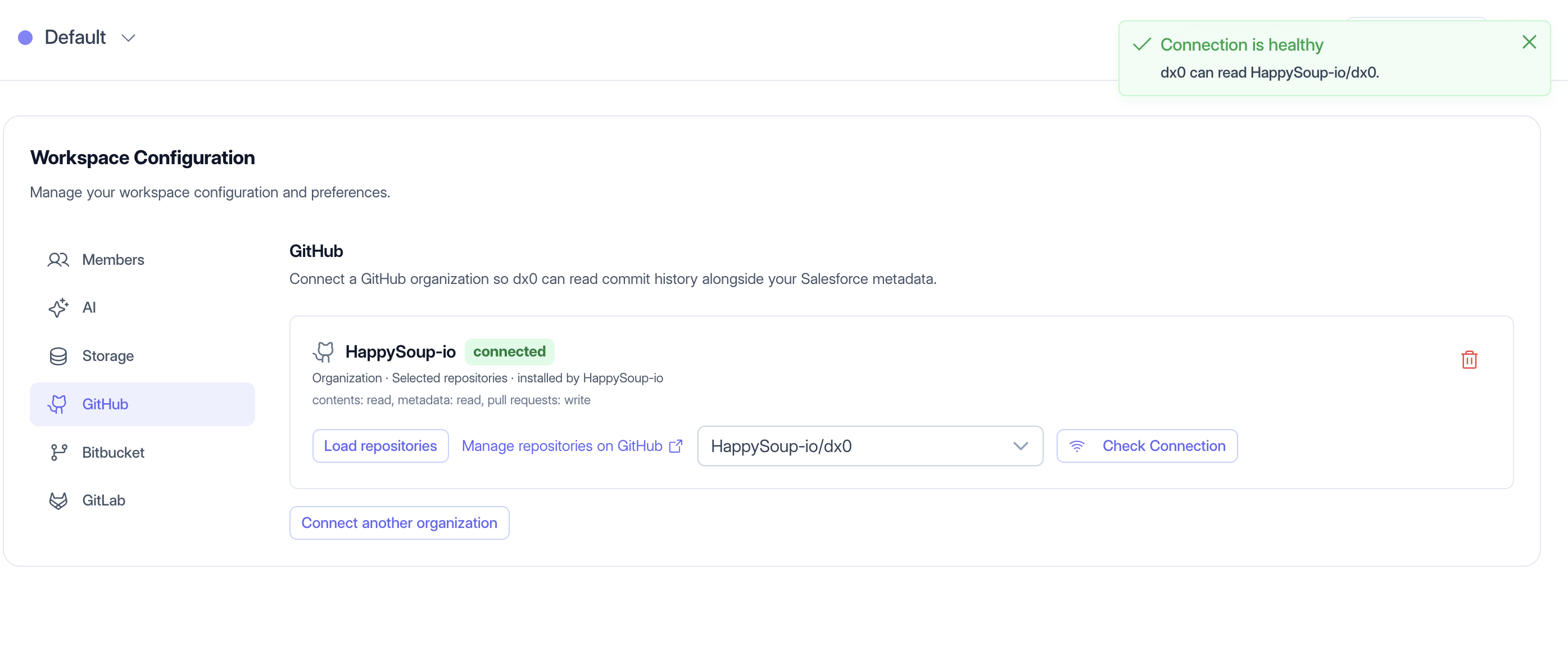
Changing which repositories dx0 can see
Click Manage repositories on GitHub on the connection card to open the app's settings on GitHub. Add or remove repositories there, then come back to dx0. The list refreshes automatically.
You can connect more than one GitHub organization per workspace with Connect another organization.
Step 2: Choose which repositories to connect
- Go to Connections → Git Repositories.
- Click Add repository.
- Under Connection, choose your GitHub organization (shown as
GitHub · <organization>). - Under Repository, search for and choose the repository. Repositories that are already connected are greyed out.
- Fill in the repository details (see below) and click Connect.
Before saving, dx0 checks that it can actually read the repository. If it can't, you see the reason and the dialog stays open.
If a repository is missing from the list, it probably isn't shared with the app. Add it with Manage repositories on GitHub first.
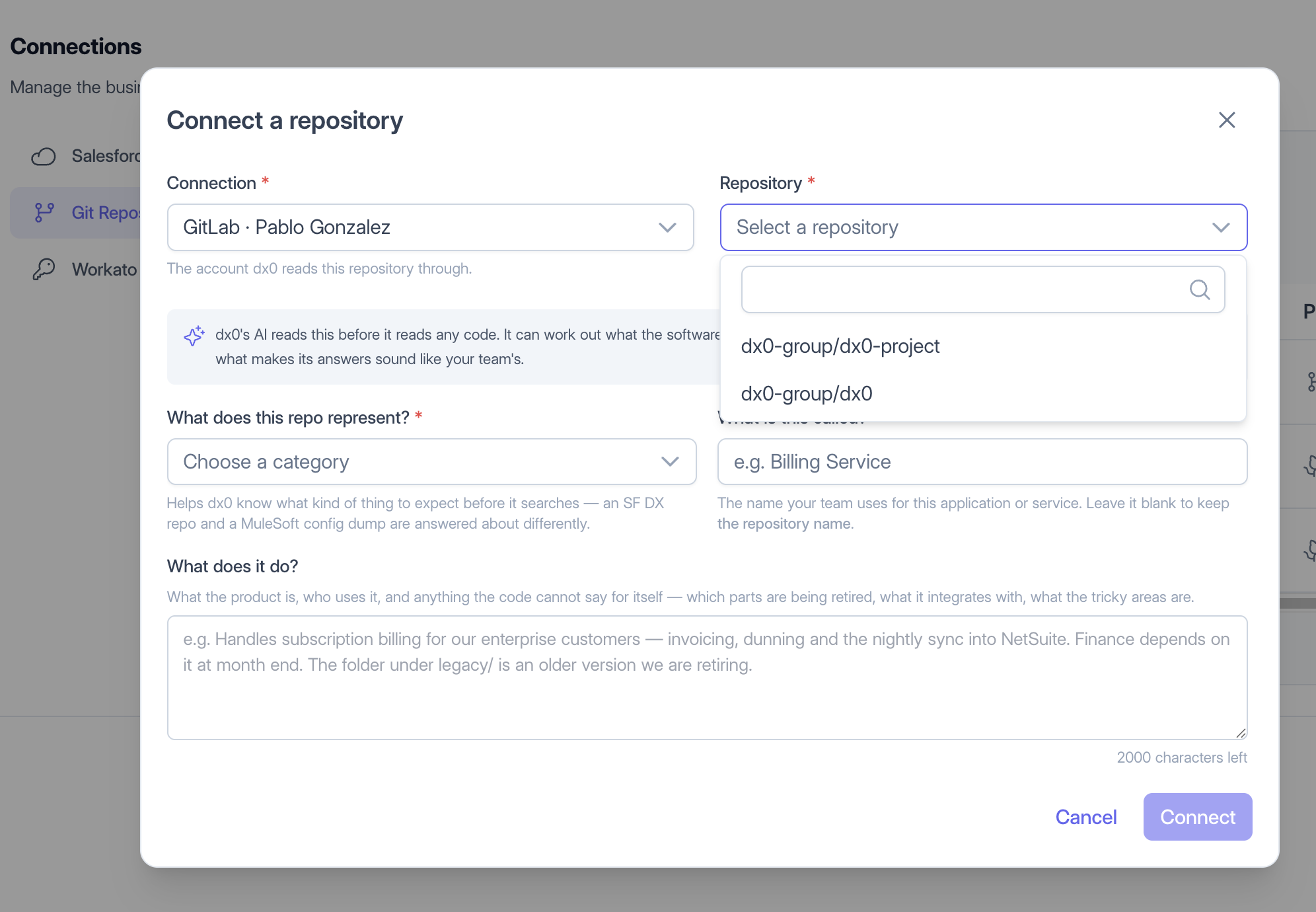
The repository details matter
dx0 reads these details before it reads any code. Take a minute to fill them in properly. They change how good the answers are.
- What does this repo represent? (required): a Salesforce DX repository, a customer-facing product, an internal service or application, or configuration for another application. dx0 approaches each one differently.
- What is this called? The name your team uses, such as "Billing Service" rather than
acme/svc-bl-2. dx0 uses this name in its answers. - What does it do? A short paragraph covering who uses it, what it integrates with, which parts are legacy or being retired, and where the tricky areas are. This is the context the code can't give on its own.
You can edit the details later on the repository's page.
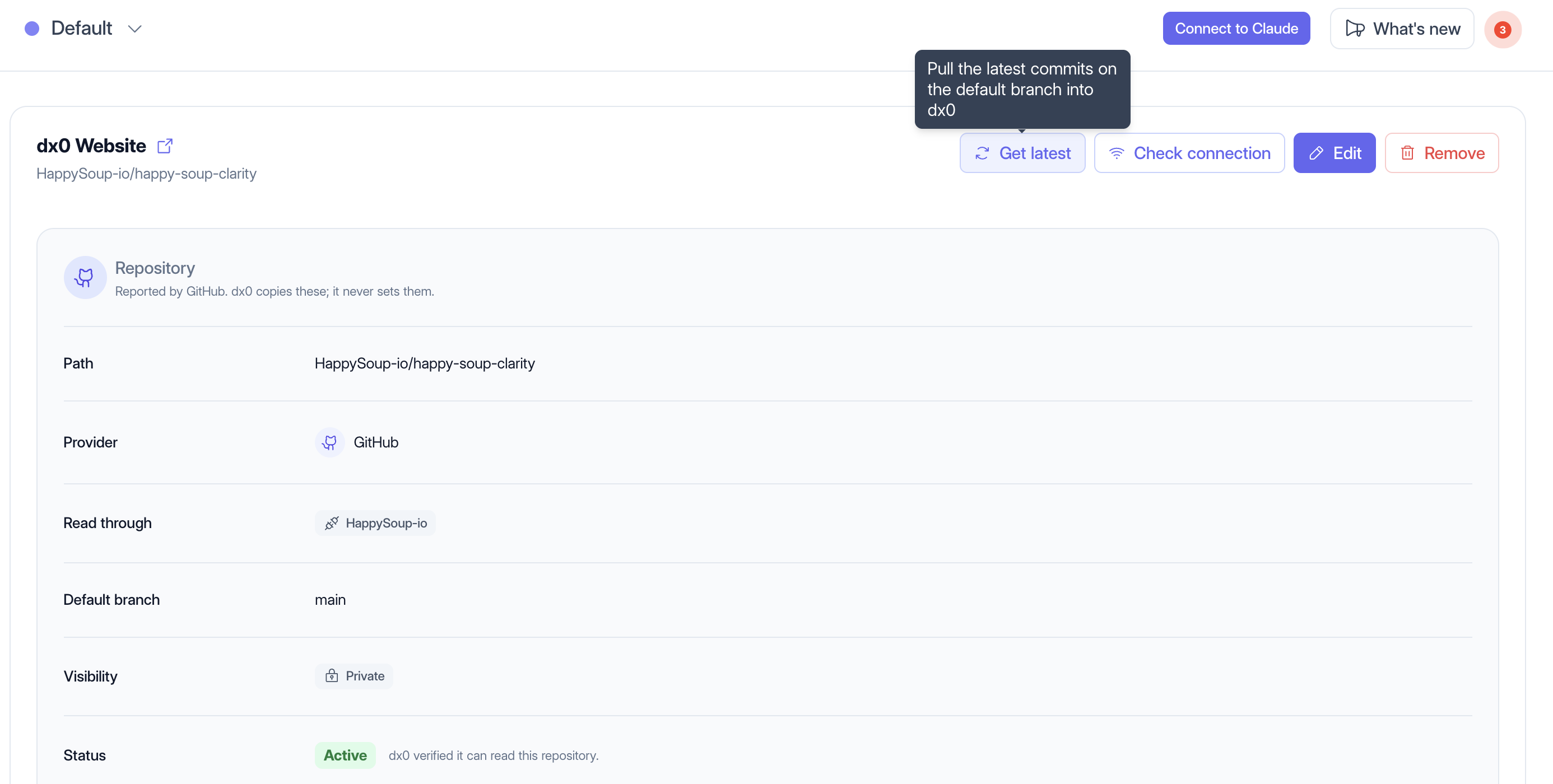
Managing a connected repository
Click a repository in the list to open its page. From there you can:
- Get latest: pull the newest commits on the default branch into dx0 right away. dx0 also refreshes on its own every few hours.
- Check connection: confirm that dx0 can still read the repository.
- Edit: update the name, type and description.
- Remove: disconnect the repository from dx0. Nothing changes on GitHub.
Step 3: Ask questions in Quick Chat
- Open Quick Chat from the sidebar.
- In the connection picker, choose your repository under Repositories.
- Type a question, or start from one of the prompt templates under the composer.
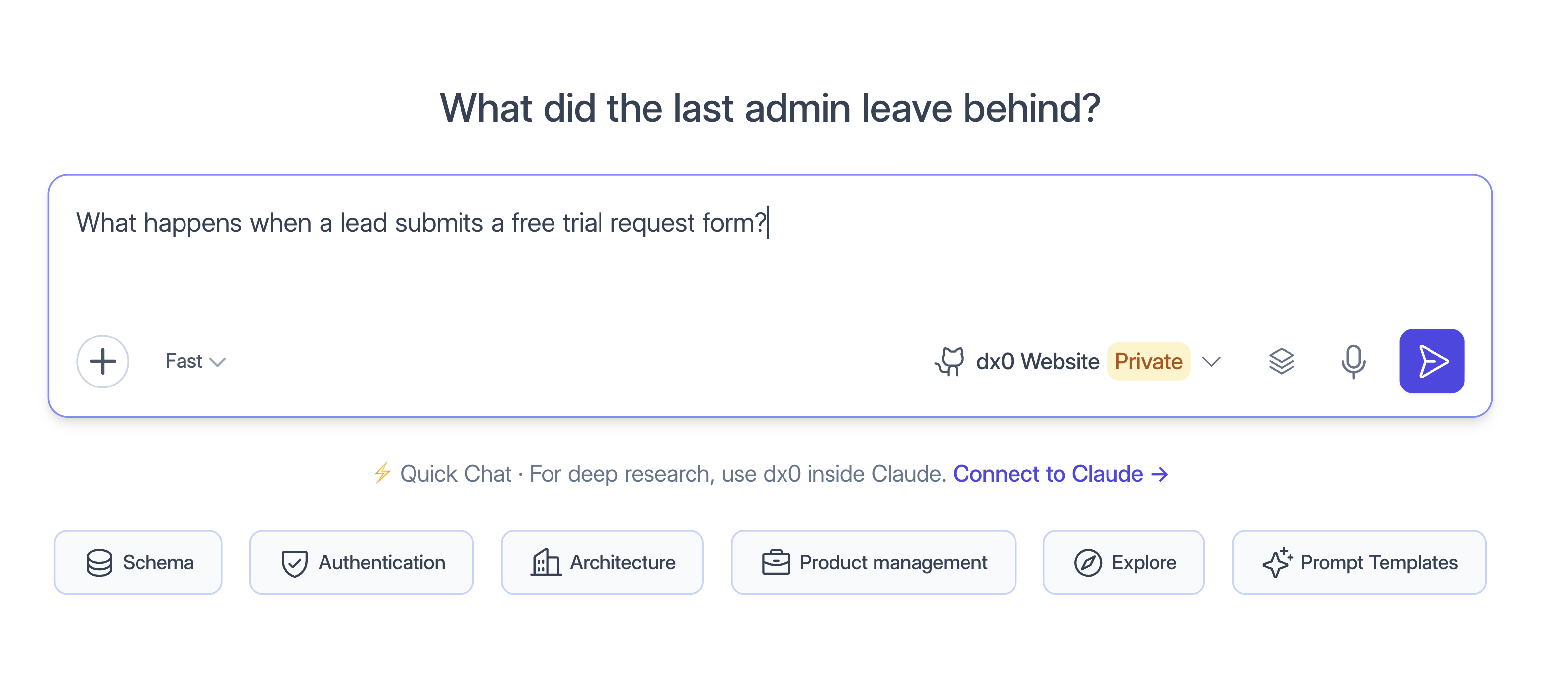
The first question about a repository can take a little longer, because dx0 downloads a copy of it ("Cloning the repository…"). After that, answers start faster.
What dx0 can and can't see
- It can see the source code on the repository's default branch, the commit history and recent pull requests.
- It can't see other branches, GitHub Actions runs, runtime logs, secrets, or repositories you haven't shared with the app. One conversation covers one repository.
- Freshness: the copy dx0 reads refreshes every few hours. Click Get latest if you need something that was merged a few minutes ago.
Troubleshooting
"Waiting for approval" after installing. You aren't an owner of that GitHub organization, so GitHub sent an approval request to the owners. Once an owner approves it, go back to Settings → GitHub and click Connect GitHub again to finish.
"Already connected to another dx0 workspace." Each GitHub installation can only be linked to one dx0 workspace. Disconnect it from the other workspace first, or connect the repositories there.
The organization shows as suspended. An organization owner suspended the dx0 app on GitHub. Ask them to unsuspend it from the organization's Settings → GitHub Apps page.
I installed dx0 from GitHub directly and nothing appeared. Always start the install from Settings → GitHub in dx0, so the installation gets linked to your workspace.
A repository shows as Orphaned. dx0 lost access. Either the app was uninstalled, or the repository was removed from the app's repository list. Reconnect GitHub or share the repository again, then click Check connection on the repository. Your repository details are kept.
Quick Chat says to set the repository type. Open the repository from Connections → Git Repositories, click Edit, and choose what it represents.
Disconnecting GitHub. On Settings → GitHub, use the trash icon on the organization. This uninstalls the dx0 app from GitHub, so access ends immediately. Repositories that used that installation are marked Orphaned rather than deleted.