

Appearance
Connecting Salesforce to dx0
Connecting an org is the first step of every engagement. Once connected, dx0 indexes the org's metadata and Quick Chat can answer questions about how that org is built.
Before you connect
Who connects in Salesforce. dx0 reads the org as the Salesforce user who authorizes the connection, so pick that user on purpose.
For production client orgs, use a dedicated integration user rather than a consultant's personal login. If someone later changes that person's password or deactivates them, the connection breaks.
Who connects in dx0. Workspace admins can add orgs. A workspace can also allow all its members to connect orgs, which lets a project team set up a client org without waiting for an admin. See Who can do what.
What dx0 does with access. The connection is read-only. dx0 retrieves metadata and configuration; it never deploys or writes to the org. Salesforce passwords never reach dx0, only OAuth tokens, which are encrypted at rest.
Choose a connection method
Both methods are standard Salesforce OAuth and give dx0 exactly the same access. The difference is who controls the app inside the org.
| Connected App | External Client App (dx0 package) | |
|---|---|---|
| Setup | Nothing to install | Install the dx0 managed package first |
| Control | dx0's app, managed by dx0 | Lives in the org, so the client's admins control scopes, IP ranges and session policies |
| Best for | Sandboxes, trials, getting started fast | Production client orgs, security-conscious clients |
Our recommendation
Use the Connected App to get going in a sandbox. For a client's production org, use the External Client App. It's the method Salesforce is moving toward, and it gives the client's admins the controls their security team will ask about.
You can switch methods later without losing anything.
Connect the org
Go to Connections → Salesforce Orgs and click Add Org. You'll provide:
- Org Name: your label for this environment, for example "Acme – Production" or "Acme – UAT".
- Login Type: Sandbox for sandboxes and scratch orgs, Production for production, Developer Edition and Trailhead orgs.
- Connection Method: Connected App or External Client App.
If you choose External Client App, install the dx0 package first. The form links to the installer for the login type you picked. Confirm that the package is installed, then continue. The connection fails without the package.
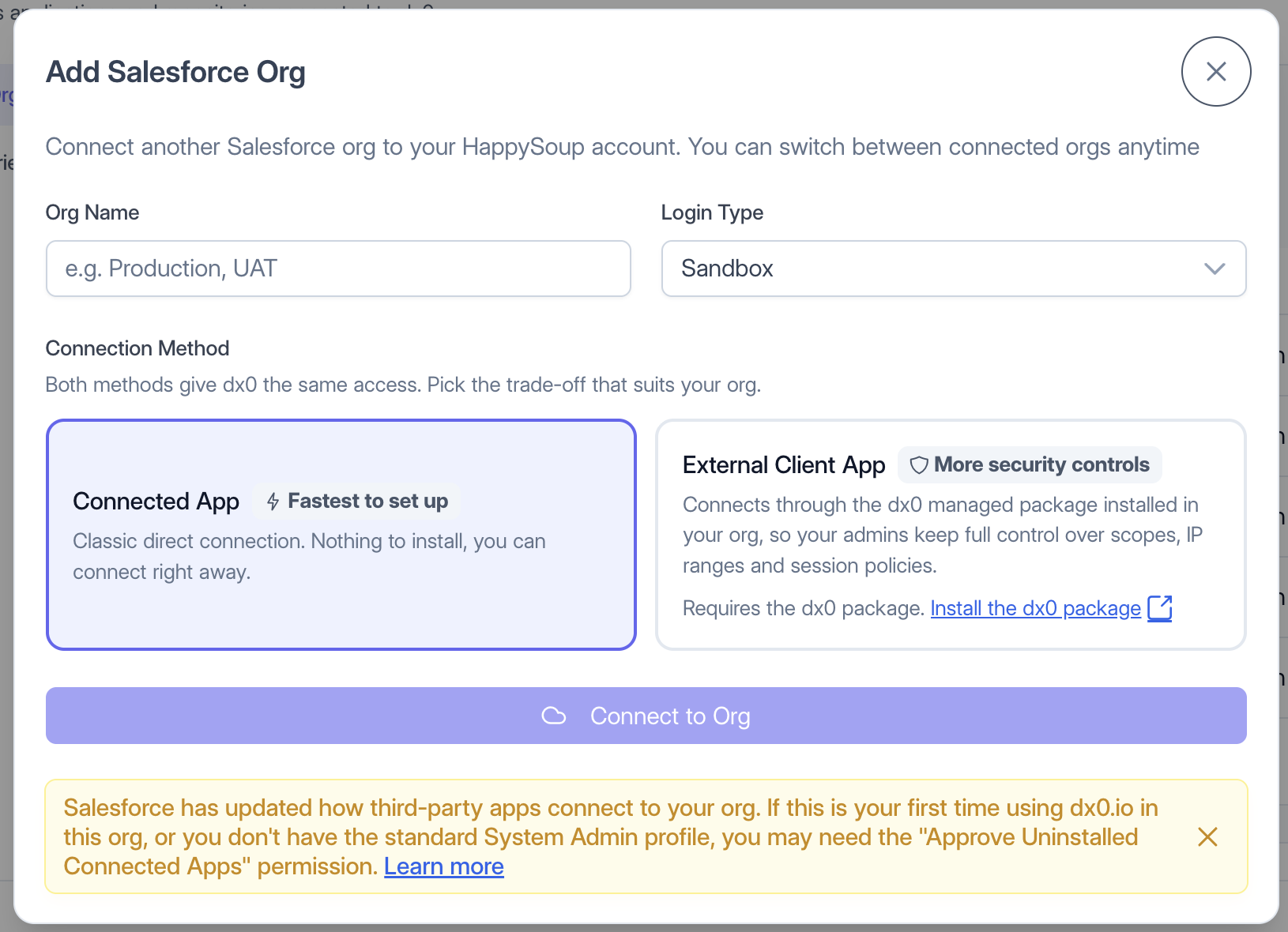
Click Connect to Org. dx0 sends you to Salesforce, which always asks you to log in, even if you already have a Salesforce session open. Use that login to pick the right user. Approve access, and Salesforce sends you back to dx0.
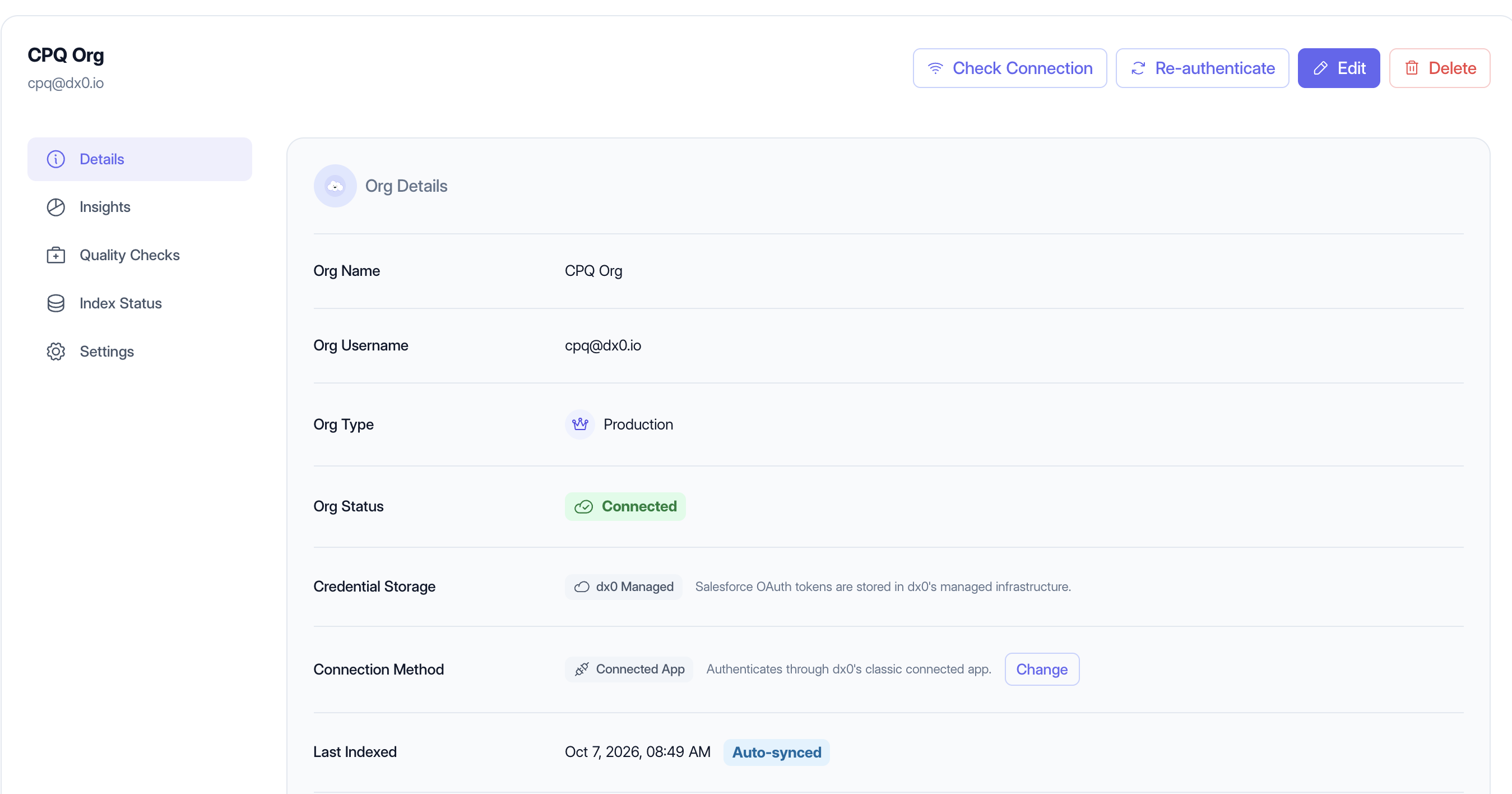
If anything goes wrong during authorization, the org stays in the list as Disconnected, and the org's detail page shows the error. Fix the cause (usually a missing permission or a missing package), then use Re-authenticate to try again. You don't need to recreate the org.
Indexing: what happens right after you connect
As soon as the org connects, dx0 starts indexing it. Indexing retrieves the org's metadata (Apex, flows, objects and fields, layouts, permission sets, validation rules and more) into a snapshot that our agent searches and reads to answer your questions. We expose the same index when you use dx0 through Claude.
Most orgs index in a few minutes; large orgs take longer. You don't need to keep the tab open. dx0 emails whoever connected the org when the first index is ready.
To watch progress, open the org and go to Index Status. You'll see each metadata type move from Pending to complete.
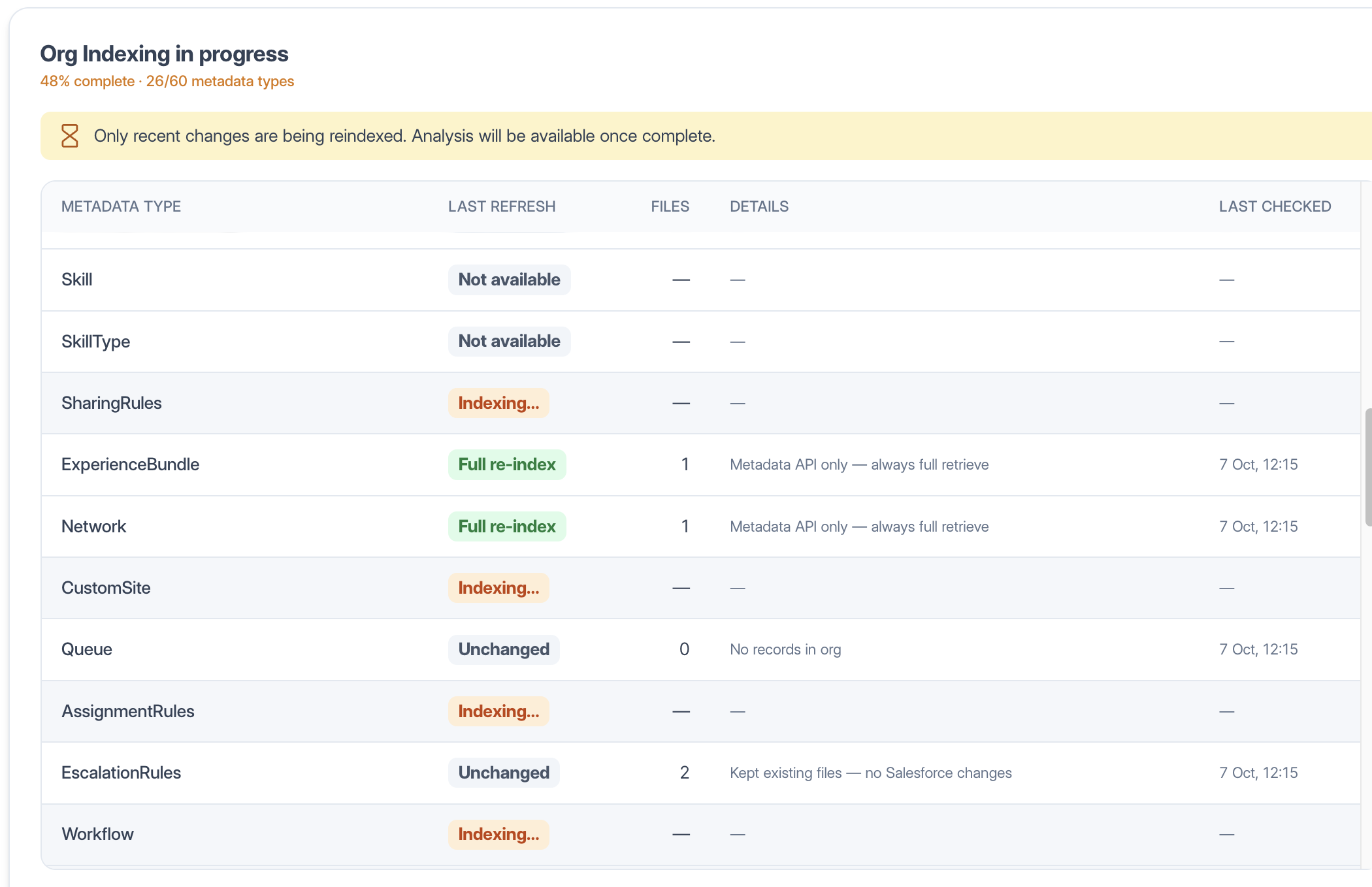
What to look for when it finishes:
- Not available next to a type means that feature or license isn't enabled in the org (for example, Experience Cloud in an org without it). That's expected, not an error.
- A few failed types don't block you. The org is still usable, and the agent works with everything that did index. Refresh later to retry them.
- The whole index failed: check that the connecting user still has the permissions above, then click Try Again.
Keep the index current
The agent answers from the most recent index, not from the live org. Keeping the index fresh matters after deployments.
- Automatic refresh. dx0 re-indexes connected orgs once a day, overnight.
- Manual refresh. Use Refresh Org Index on the Index Status page after a deployment or a round of config changes. dx0 also shows a hint there when it detects org changes that aren't in the index yet.
- Refreshes are incremental. dx0 only re-retrieves what changed. In the results table, Unchanged means a type was kept as-is and is still fully searchable. Partial update means only the changed components were fetched. Full re-index means the whole type was retrieved again.
Under the org's Settings → Index Configuration you can:
- Include Reports and Dashboards. These are off by default because they're slow to retrieve. Turn them on only when the engagement needs them.
- Turn off Automatic Indexing. Useful for an org you've finished with but want to keep for reference. Quick Chat keeps working with the last index.
- Turn off Fast Indexing. Only do this if a very large org keeps failing or timing out. The index will be identical, just slower to build.
Start using the agent
When the first index is ready, click Quick Chat and select the org in the connection picker in the composer. Then ask your question.
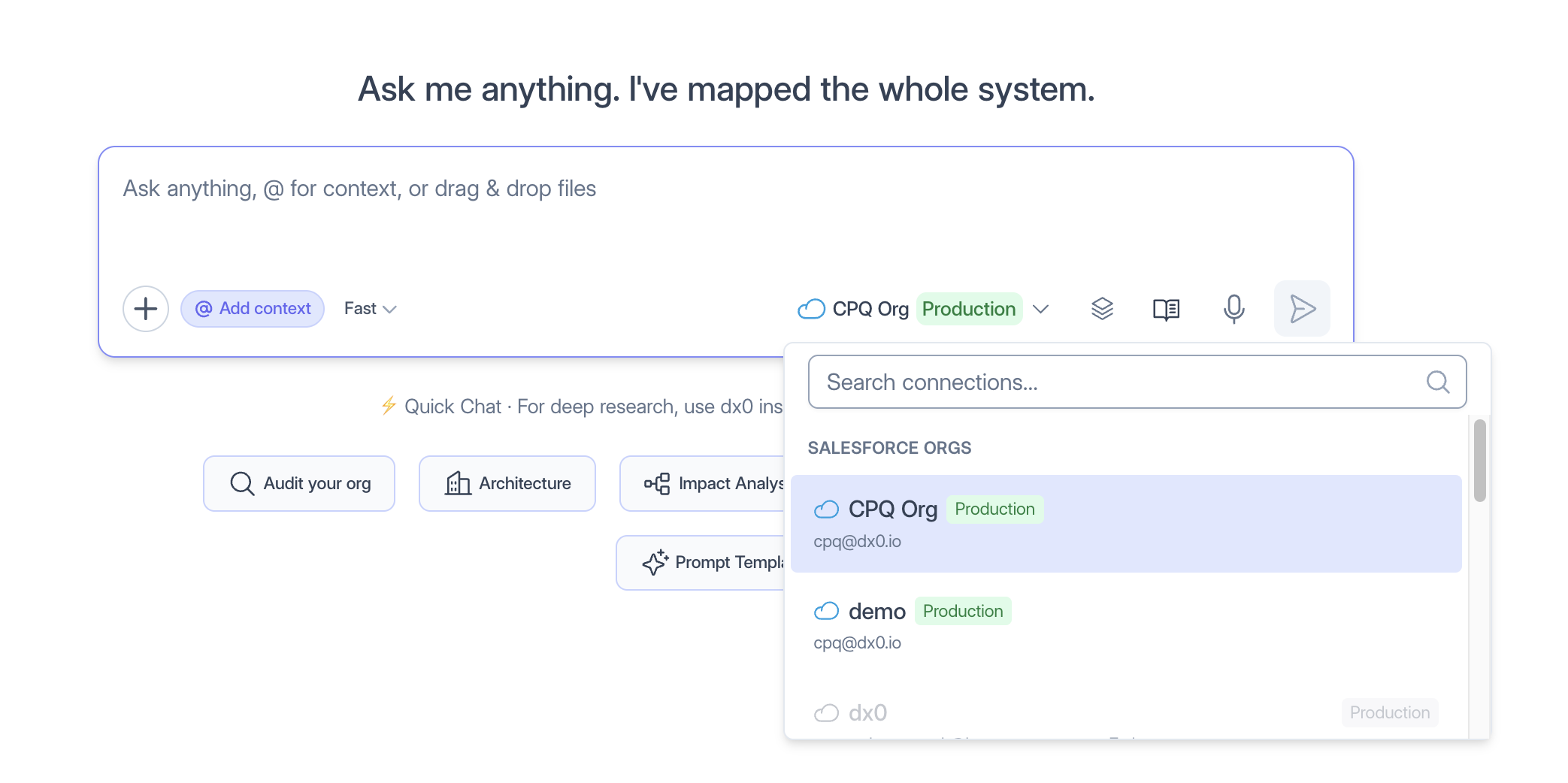
Fix a broken connection
OAuth connections break for ordinary reasons: a sandbox refresh, a password change, a policy change on the app. From the org's detail page:
- Check Connection tests whether dx0 can still reach the org.
- Re-authenticate runs the same login flow again and keeps the org's index, settings and history. You must log in to the same org. dx0 rejects a login to a different org and leaves the existing connection untouched.
- Change (next to Connection Method on the Details tab) re-authenticates with the other method. If you're switching to the External Client App and the package isn't installed yet, the switch fails and the current connection keeps working.