

Appearance
Connecting Claude
Connect dx0 to Claude so it can use the real context of your Salesforce orgs, git repositories and Workato connections when it answers. With dx0 connected, Claude doesn't have to guess how your org is built: it looks it up.
dx0 works with Claude on the web (claude.ai), Claude Desktop and Claude Code. You don't need to copy an API key. You sign in to dx0 once and approve the connection.
What Claude gets access to
- Read-only access. Claude can read metadata, configuration, change history and your past dx0 conversations. It can't change anything in Salesforce, your repositories or dx0.
- No CRM records. Salesforce results only cover configuration and aggregate counts.
- It acts as you. Claude sees what you can see in your dx0 account, across all the workspaces you have access to, and nothing more.
- Indexed connections only. An org or Workato connection has to be indexed at least once before Claude can read it.
- No dx0 AI capacity used. Claude's calls to dx0 don't count against your dx0 AI usage.
For the full permission model, see The dx0 MCP.
Before you start
- You need a dx0 account and at least one indexed connection (a Salesforce org, a repository or a Workato workspace).
- You need a Claude account. On a Team or Enterprise plan, an owner may need to add dx0 for the organization first (see below).
How to connect
In dx0, go to Settings → MCP & API Keys, or click Connect to Claude in the top bar. The page walks you through three short steps: choose your agent, add dx0, and try a first prompt.
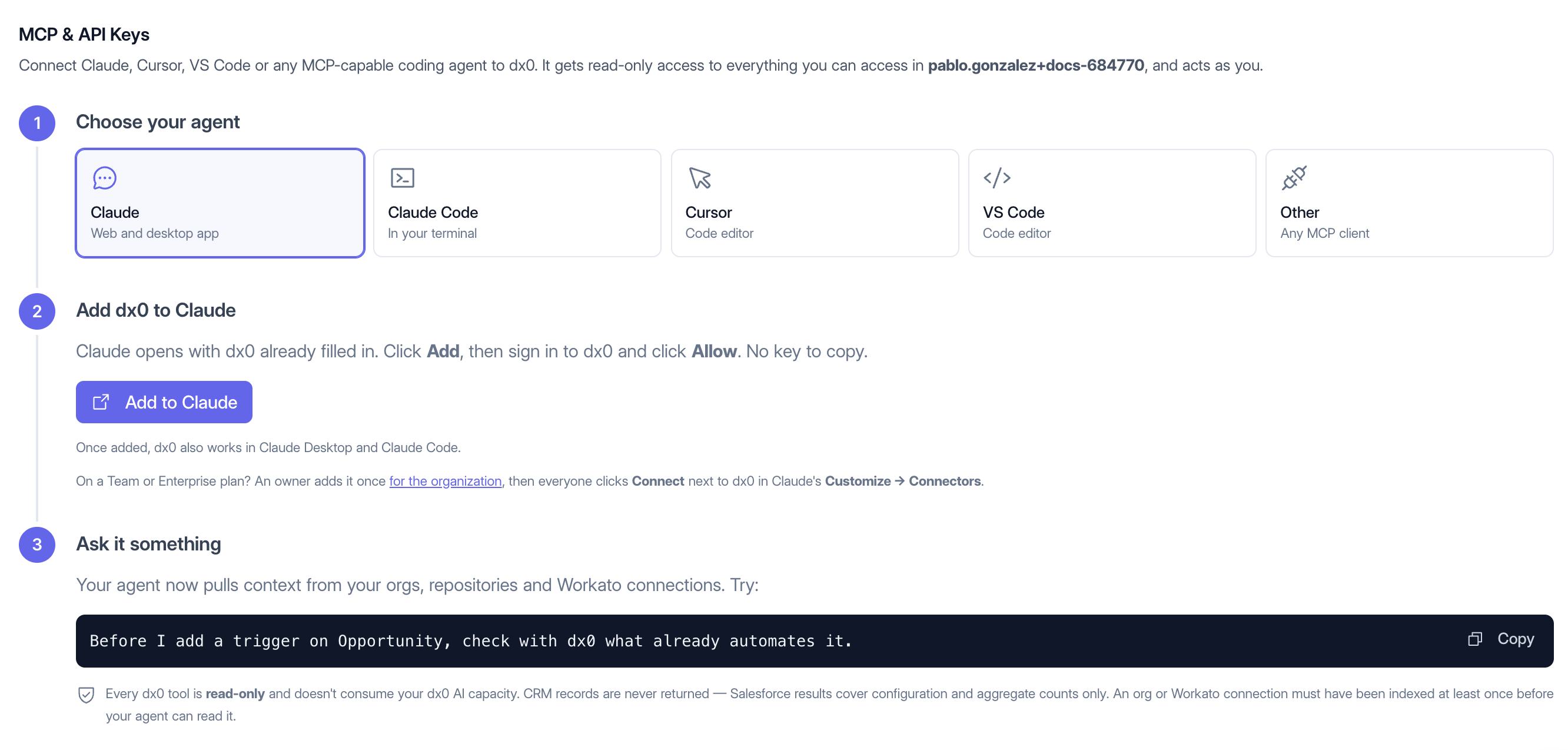
Claude (web and desktop)
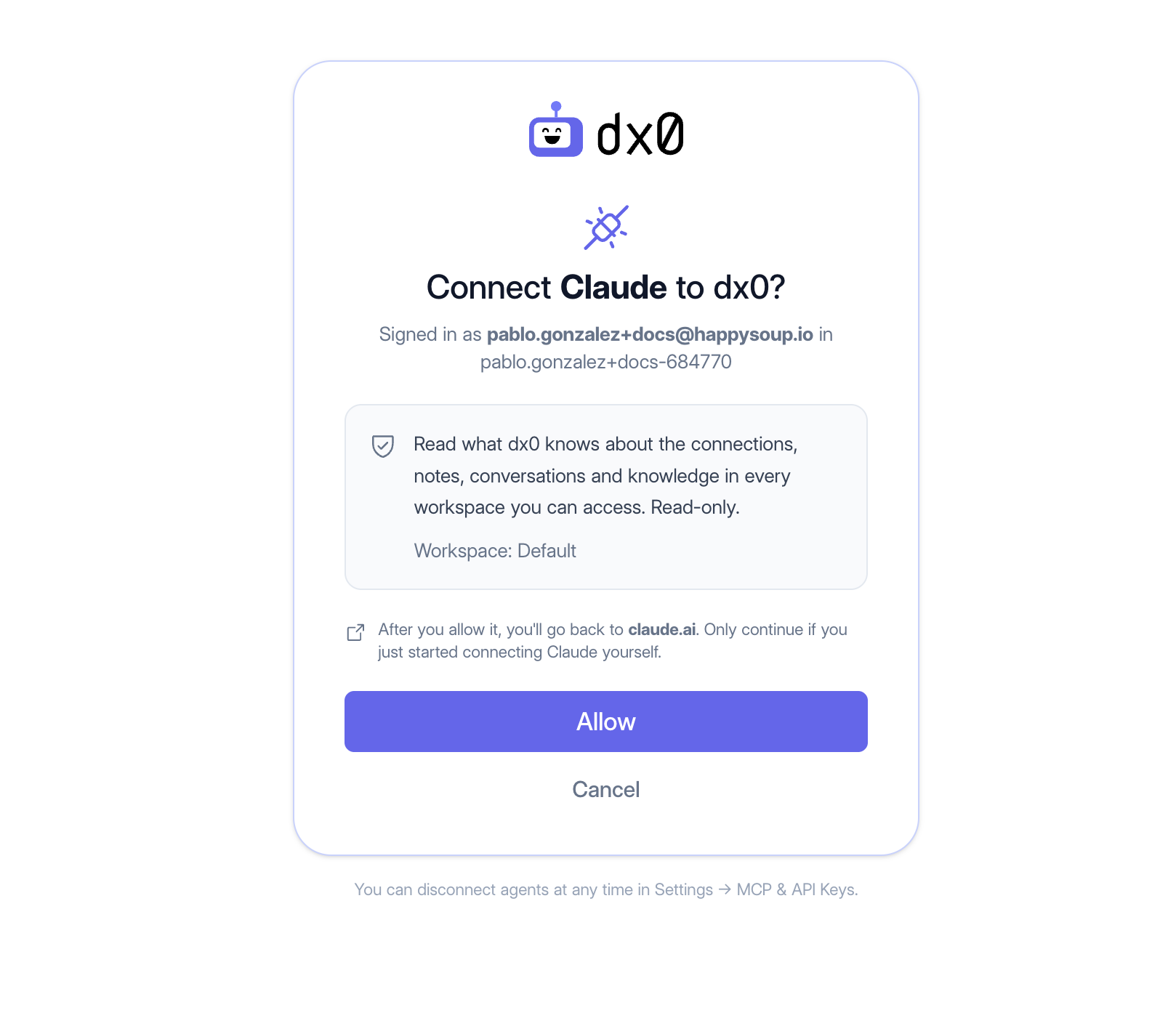
- Select Claude and click Add to Claude. Follow the screens below.
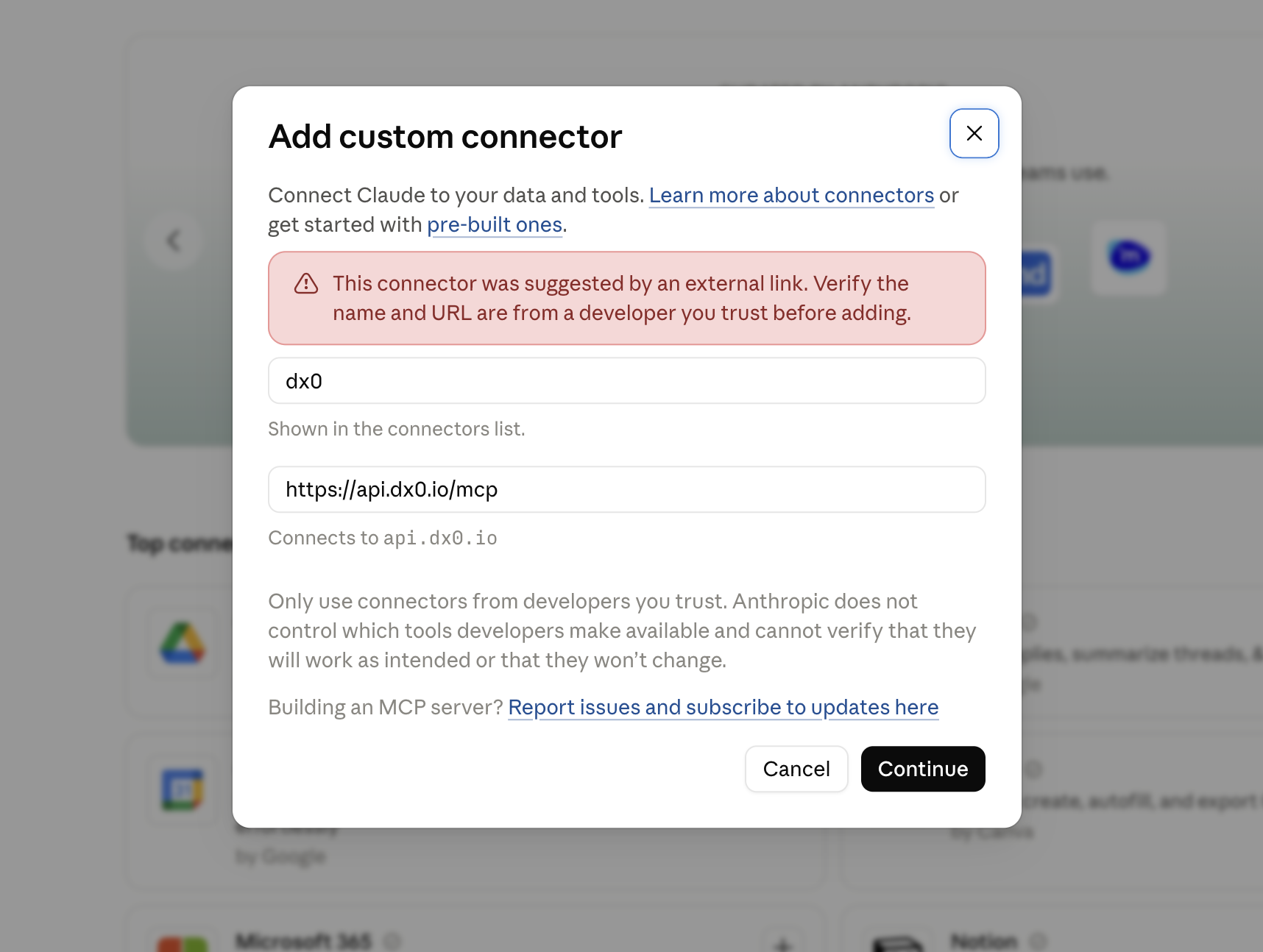
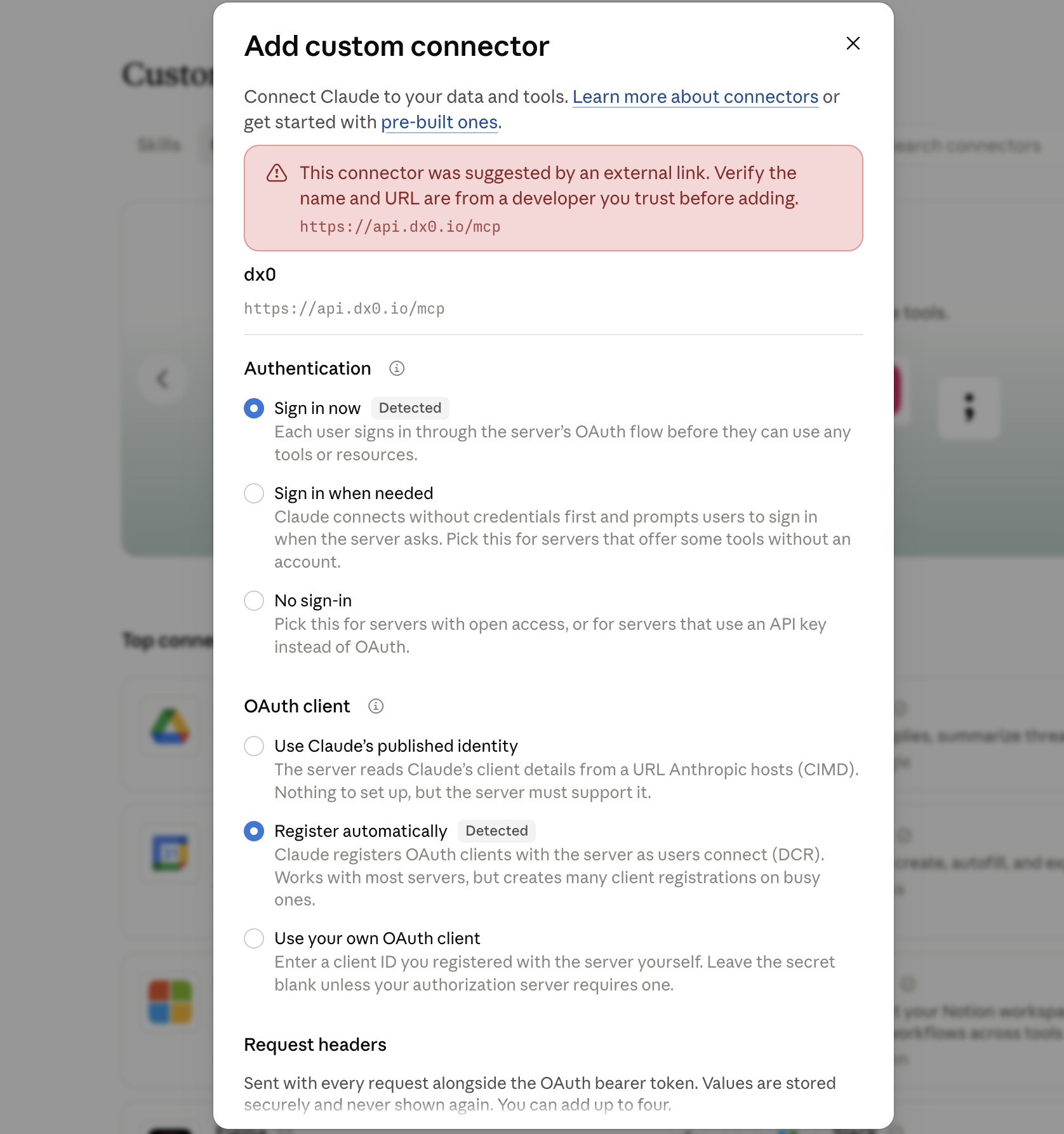
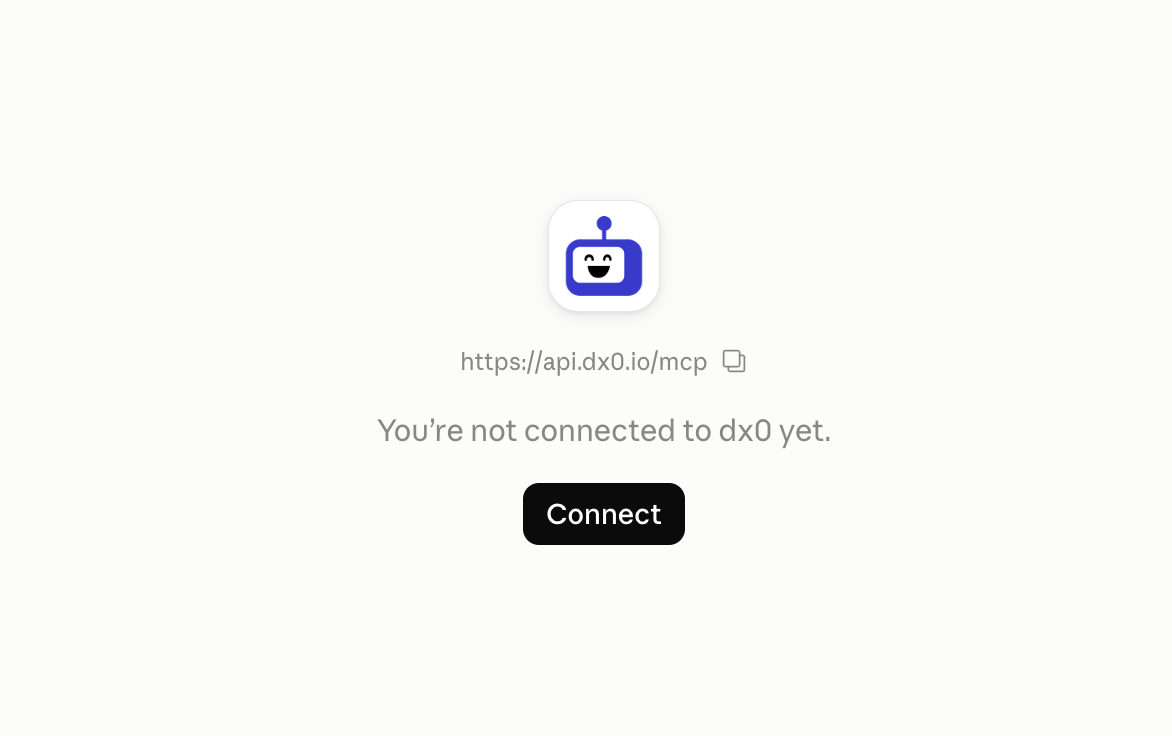
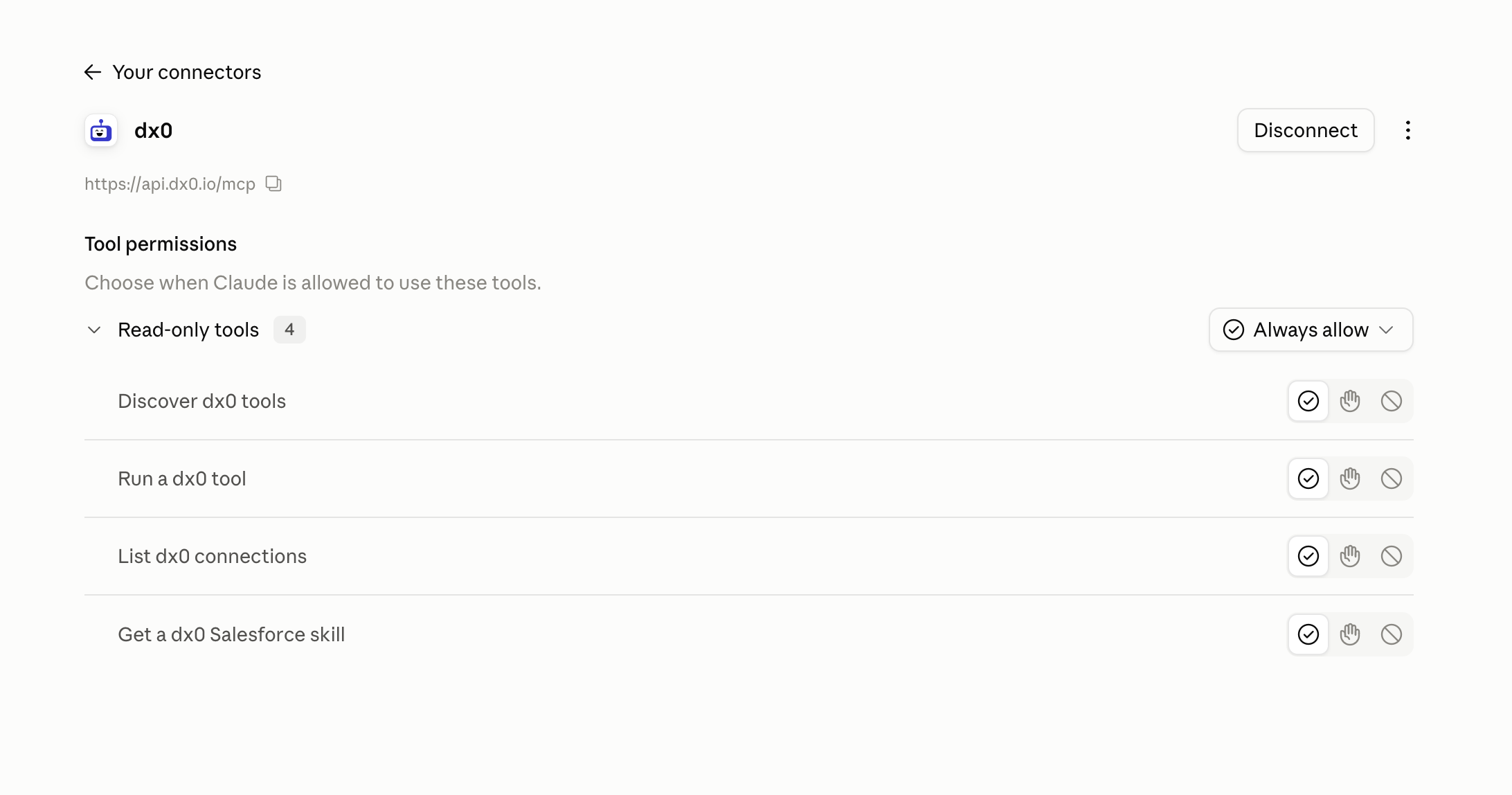
- Set all the MCP tools to Allow so that Claude doesn't have to ask for permission every time.
That's all. When the connection is live, you'll get an email from dx0 confirming that Claude is connected. Once dx0 is added on claude.ai, it also shows up in Claude Desktop.
Team and Enterprise plans
On Claude Team or Enterprise, an organization owner adds dx0 once for the whole organization. The link is on the same dx0 page, under "for the organization". After that, each person goes to Customize → Connectors in Claude and clicks Connect next to dx0. Each person still signs in to dx0 with their own account, so everyone only sees what they can access.
Claude Code
Select Claude Code on the same page and run the command it shows in your terminal. Then type /mcp in Claude Code, pick dx0, and sign in. Your browser opens so you can click Allow.
Try it
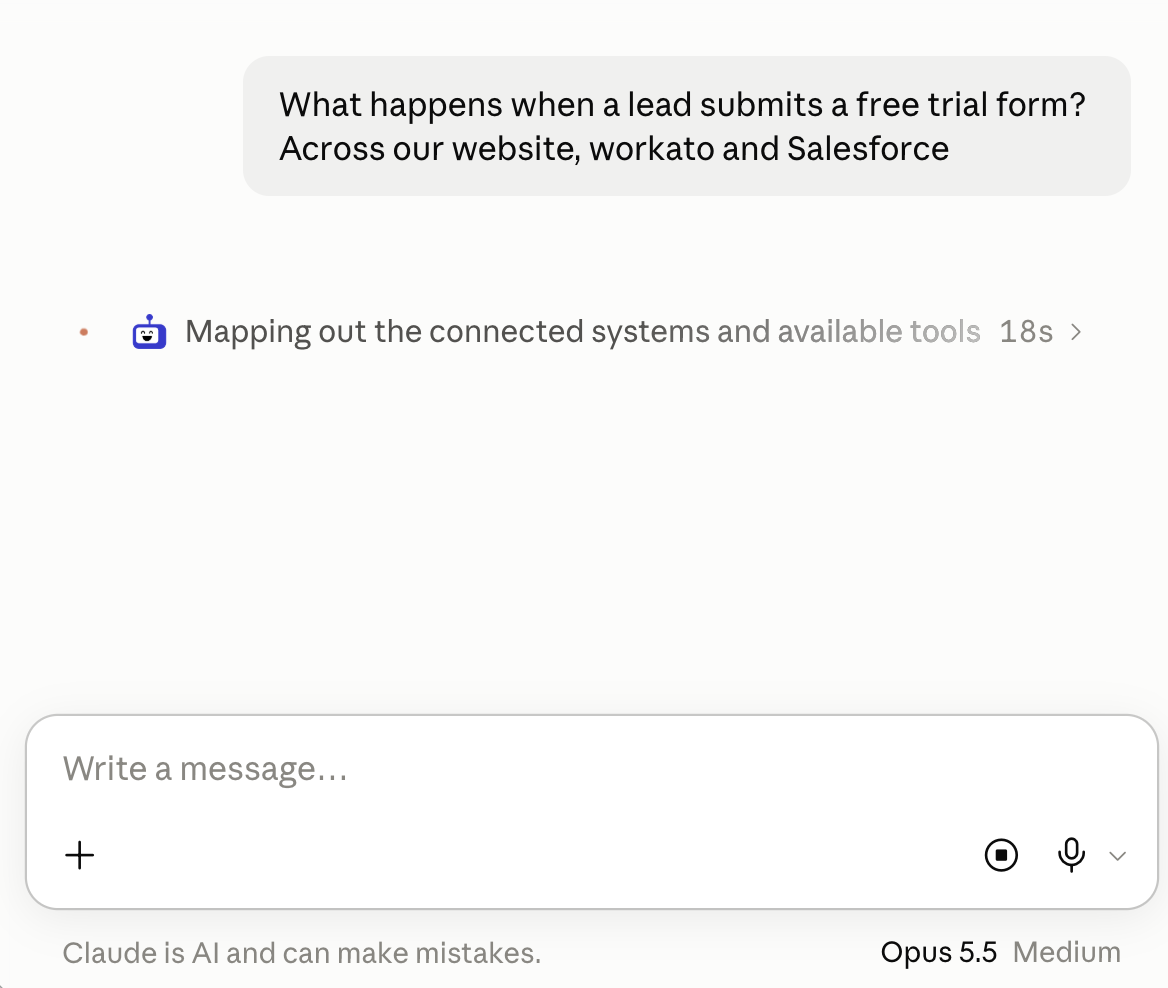
Ask Claude a question that needs your org's context. Claude decides on its own when to call dx0, but saying "check with dx0" helps the first time. Some good first questions:
- Before I add a trigger on Opportunity, check with dx0 what already automates it.
- What would break if I delete this field?
- Explain how lead conversion works in our org.
Managing and disconnecting
Every agent you've connected is listed under Connected agents on the MCP & API Keys page, with when it was connected and when it was last used. Click Disconnect to remove access right away. You can always connect again later.
Admins can switch the list to Everyone in [account] to see, and disconnect, agents connected by anyone in the account.
A connection stays active as long as it's used. If it goes unused for about 30 days, Claude will ask you to sign in again.
Troubleshooting
- Claude can't see an org or connection. Check that it has been indexed at least once in dx0, and that you have access to the workspace it belongs to.
- You got a "connected" email but didn't connect Claude yourself. Disconnect it from Connected agents right away.
- Your agent can't sign in through a browser. Under Advanced: API keys on the same page, you can generate a personal API key (choose MCP only) and use it instead. Prefer the normal sign-in whenever you can.