

Appearance
Native AI platform
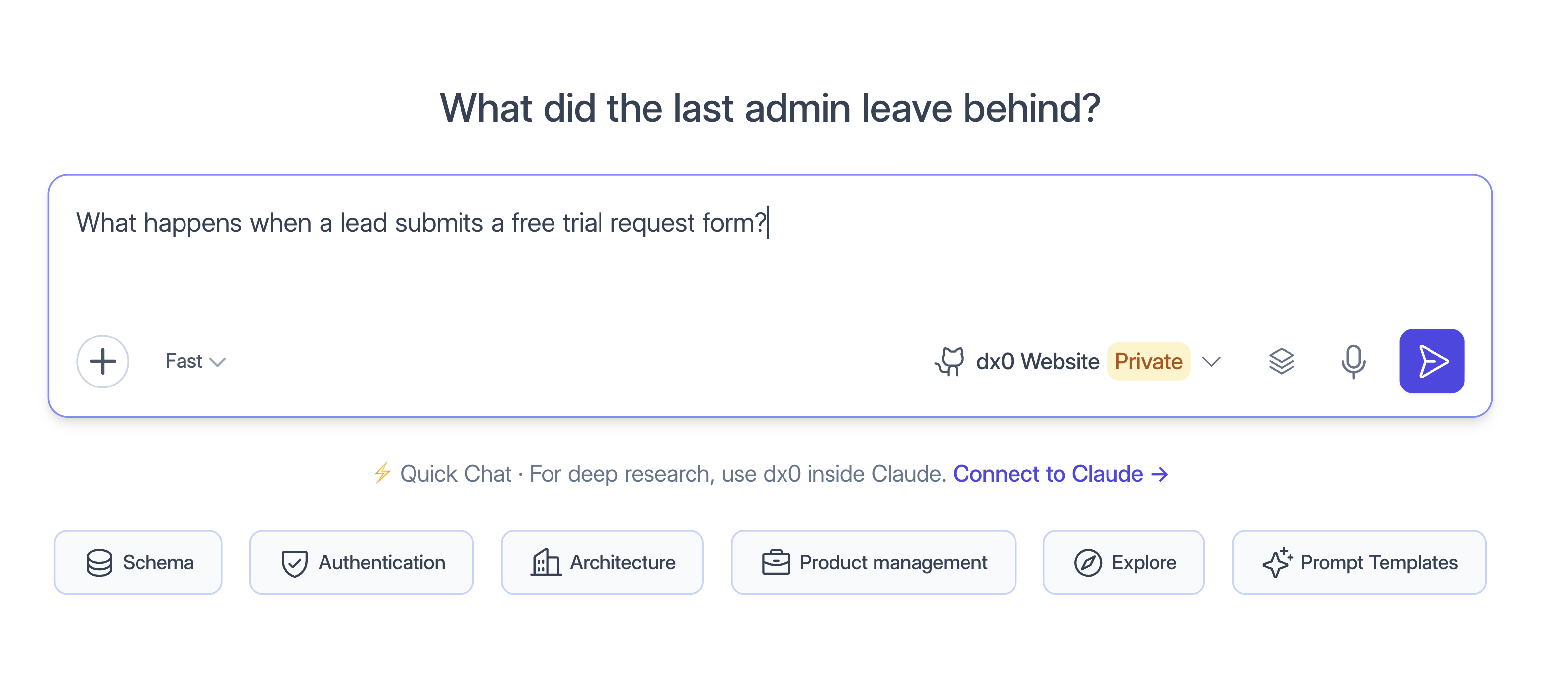
Quick Chat is dx0's native AI. You ask a question in plain language, and dx0's agent researches your connected systems and answers with the evidence it found. Use it when your team doesn't use Claude or another AI agent yet, when you're waiting on IT to approve one, or when you want the full dx0 experience in one place.
Quick Chat or MCP?
dx0 gives you two ways to put AI to work on your systems:
| Quick Chat | dx0 over MCP | |
|---|---|---|
| Whose AI | dx0's managed AI, powered by OpenAI | Your own agent: Claude, Cursor, Claude Code, Copilot and others |
| Setup | None. It's built into dx0. | Connect your agent once, then sign in |
| Best for | Teams without an approved AI agent, and anyone who wants dx0's native tools | Developers and consultants who already work inside an AI agent |
| What the AI can read | Your connected orgs, repositories and Workato workspaces, plus files you attach | Your connected orgs, repositories and Workato workspaces |
Both options read the same data dx0 has collected about your systems, and both respect the same workspace permissions.
Ask across one or several systems
Pick what you're asking about with the connection picker in the composer. You can choose a single Salesforce org, repository or Workato workspace, or select several at once and ask one question across all of them. For example, you can ask which Workato recipes and Apex classes write to the same Opportunity field.
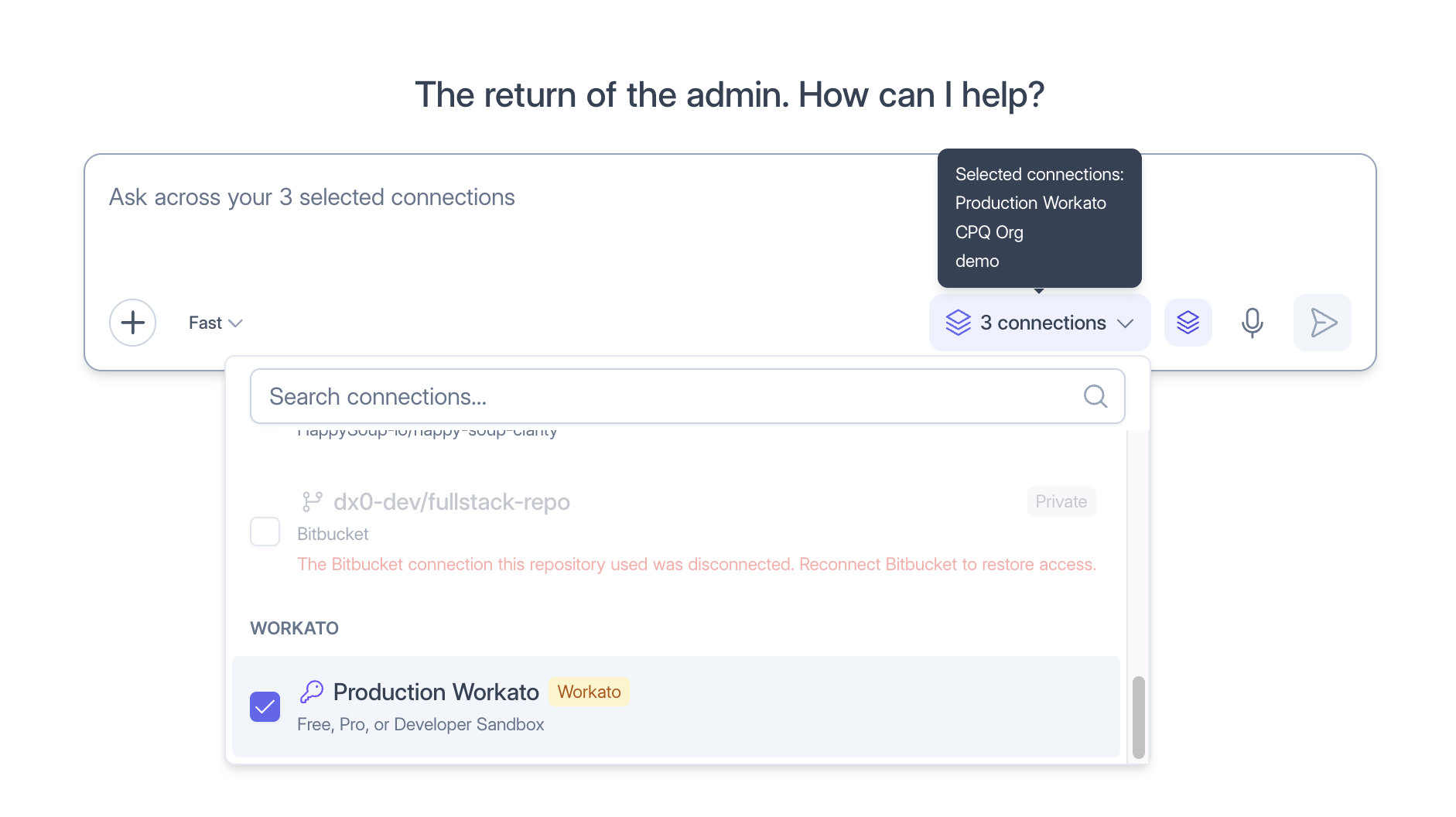
A conversation stays tied to the connections you started it with, so follow-up questions keep the same scope.
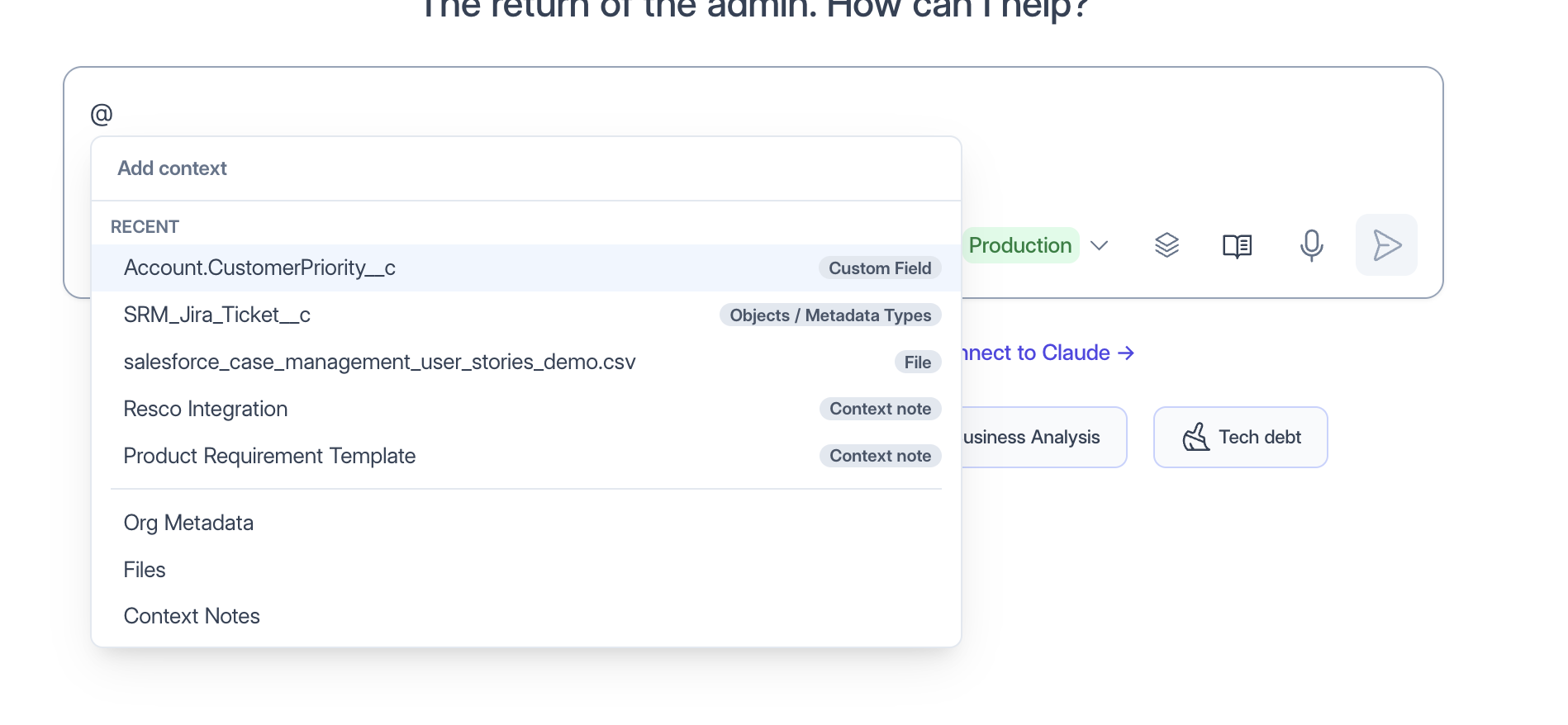
Add context with @
Type @ in the composer, or click Add context, to give the agent exactly what it needs:
- Salesforce metadata: point the agent at a specific object, field, Flow, Apex class or other component, so it starts there instead of searching for it.
- Context notes: add your team's notes on conventions, decisions and background, so the answer reflects how your team actually works.
- Files: attach a file you've already uploaded to dx0. You can also drag and drop new files, such as screenshots, requirements documents or spreadsheets, straight into the composer. The agent reads them alongside your systems.
Start from a prompt template
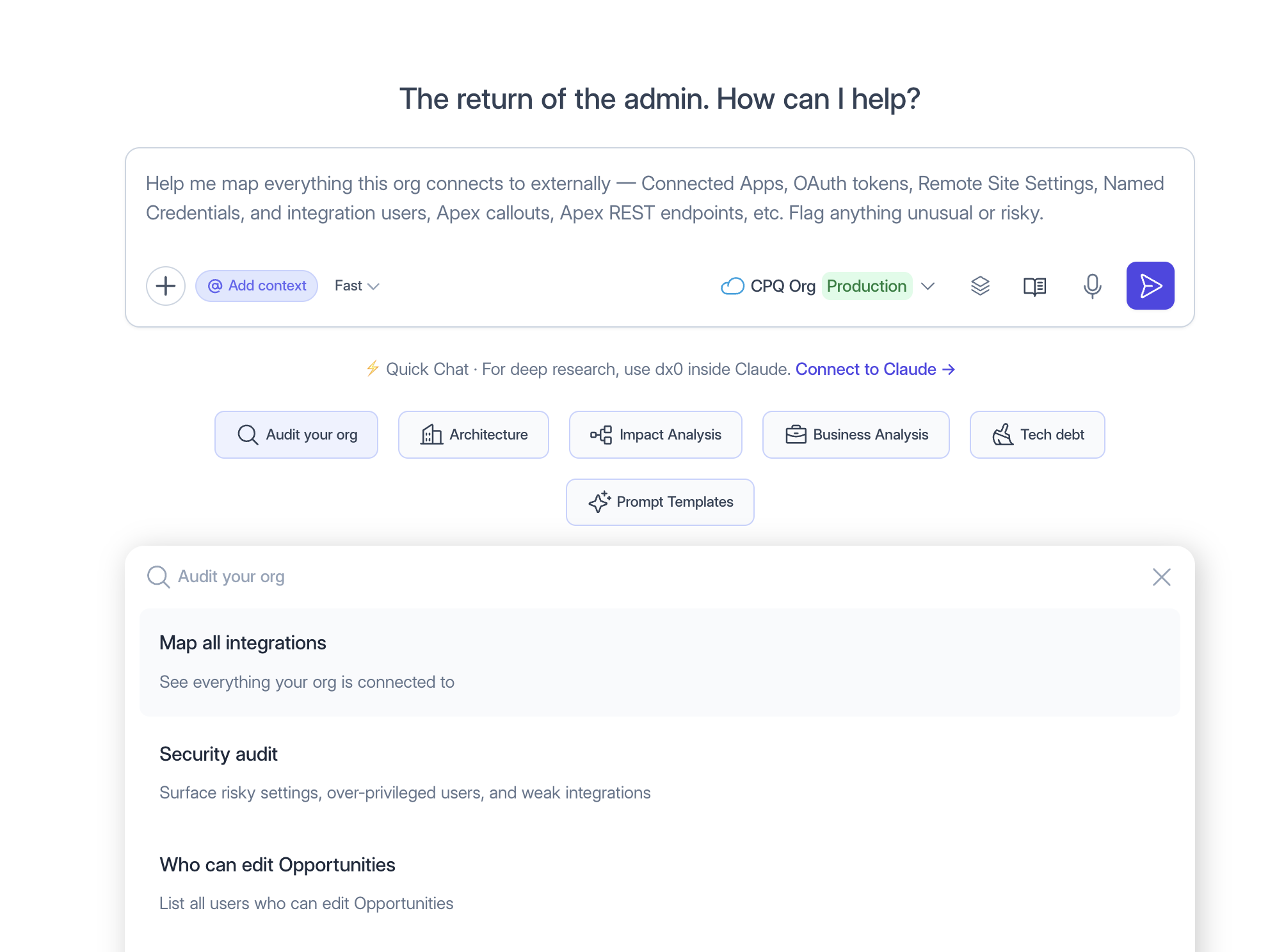
Below the composer, prompt templates give you a proven starting point for common jobs. They change with the type of connection you've picked:
- Salesforce: security audits, integration maps, full object overviews, field usage, change impact, Sales Cloud and Service Cloud footprint, data dictionaries, and mapping a user story to what's already in the org.
- Workato: explaining a recipe, finding which recipes read or write a field, and tracing dependencies between recipes.
- Repositories: schema and entities, how authentication works, system overviews, release notes and feature documentation.
Hover over a template to preview its prompt in the composer, then click it to use it as is or edit it first.
Build your own library. Under Context → Prompt Templates you can save your own prompts. Keep a template private, or share it with everyone in your account. Shared templates are available in every workspace, so a consultancy can build its audit prompts once and reuse them for every client.
Reshape answers with / commands
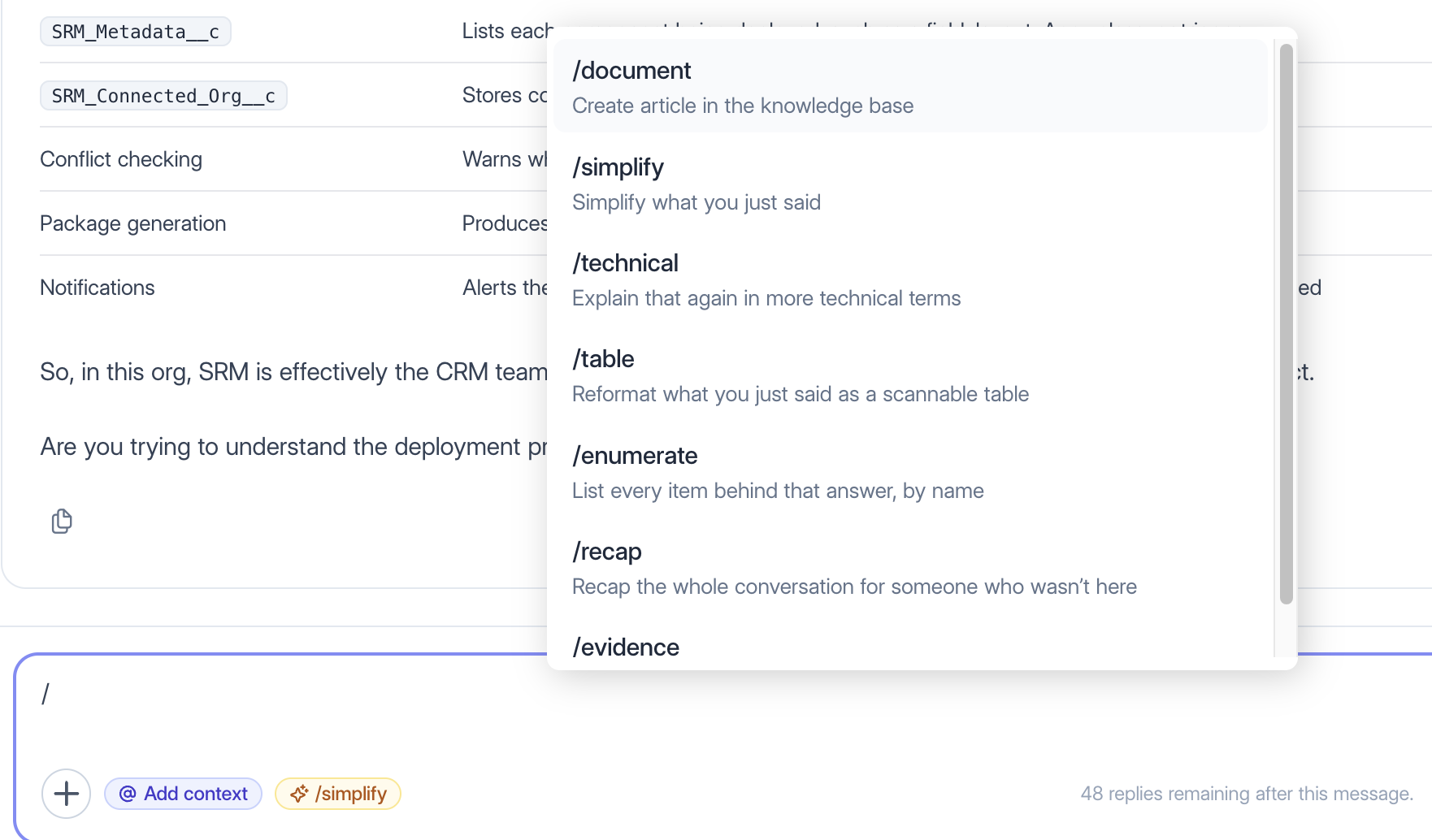
In a follow-up, type / to reuse a common follow-up instead of retyping it:
/simplify: shorten the last answer into plain language./technical: explain it again in more technical terms./table: reformat the answer as a table you can scan./enumerate: list every item behind the answer, by name./evidence: show which parts are grounded in your systems and which are inferred./recap: summarize the whole conversation for someone who wasn't there./document: turn the answer into a knowledge base article.
/simplify also has its own button in the composer, because long answers are the most common reason to follow up.
Choose how hard the agent thinks
Before you send your first message, choose a thinking level:
- Fast works for most questions.
- More thinking suits harder investigations.
- Extra thinking suits multi-step impact analysis.
The level stays fixed for the rest of the conversation.
More built into Quick Chat
- Multi-turn conversations. Keep asking follow-ups in the same thread, and the agent builds on what it has already found.
- See how the agent got there. Every answer lists the tools the agent used, and you can expand its reasoning while it works.
- Dictation. Click the microphone to speak your question instead of typing it. dx0 doesn't store the audio.
- Search and SOQL panels. In a Salesforce conversation, the side drawer lets you search your automations for hardcoded values and run SOQL from the query library without leaving the chat.
- Conversation history. Past conversations appear in the sidebar. Tag them so you can find them again, and pick up where you left off.
- Recommendations. When the agent spots a real risk while answering, such as a security gap or fragile automation, it logs a recommendation for your workspace with the evidence and a suggested fix.
- Live record data (optional). If an account admin enables data access and grants it to you on a specific org, the agent can run read-only queries against live records, with personal data redacted. It's off by default.
What happens to your data
- Quick Chat uses dx0's managed AI, powered by OpenAI. Your questions, the evidence the agent gathers and any files you attach are processed by OpenAI to produce the answer.
- The agent only sees the workspaces and connections you can access in dx0.
- Conversations are private to you. Recommendations and shared context notes are visible to your workspace.
- Live record data stays off unless an account admin enables it and grants you access to a specific org.